NON DESTRUCTIVE and SMART JOIN |
![]() |
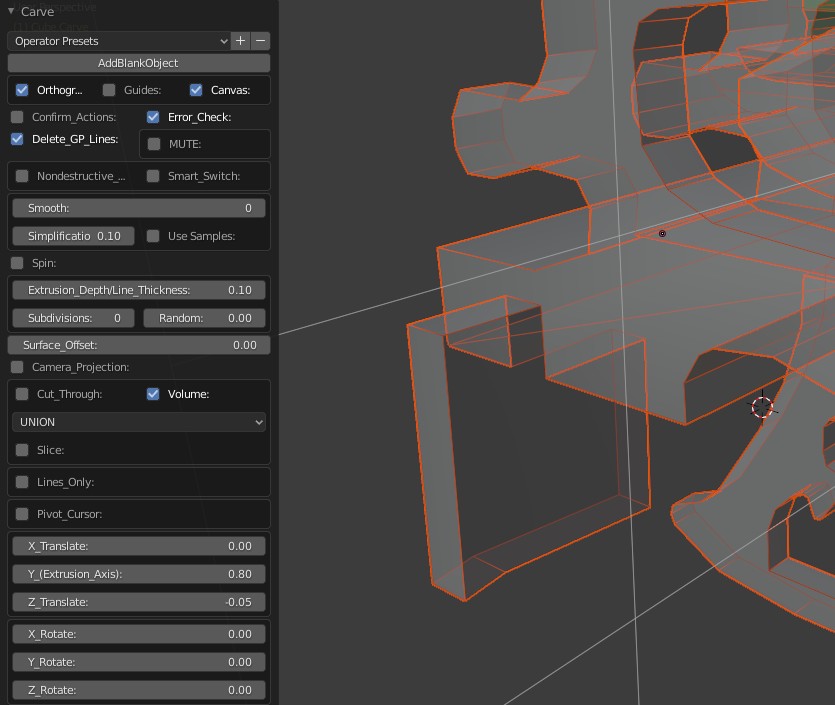
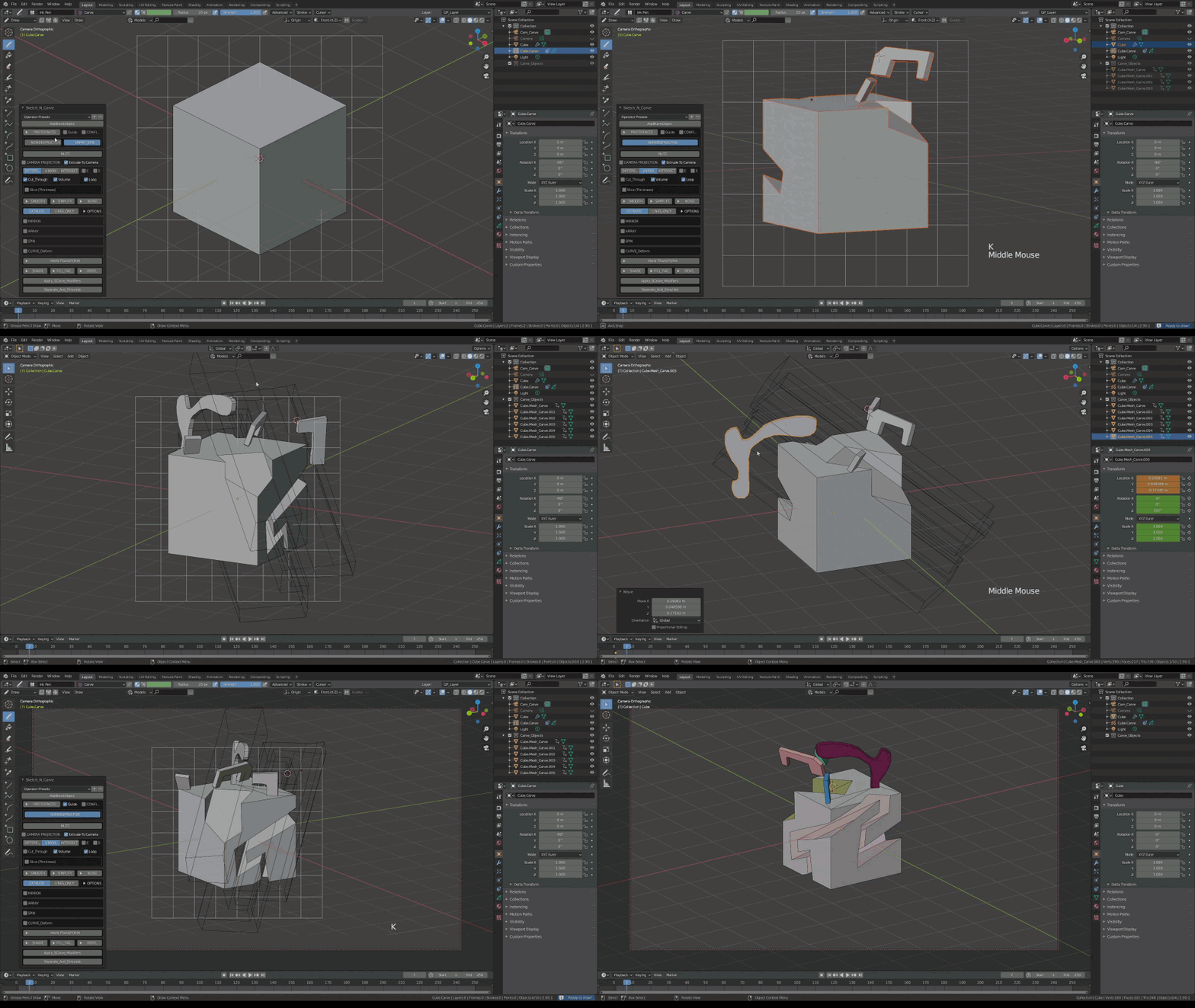
| Before any operation, if you turn on "Nondestructive_Modeling" all operations will be kept live. |
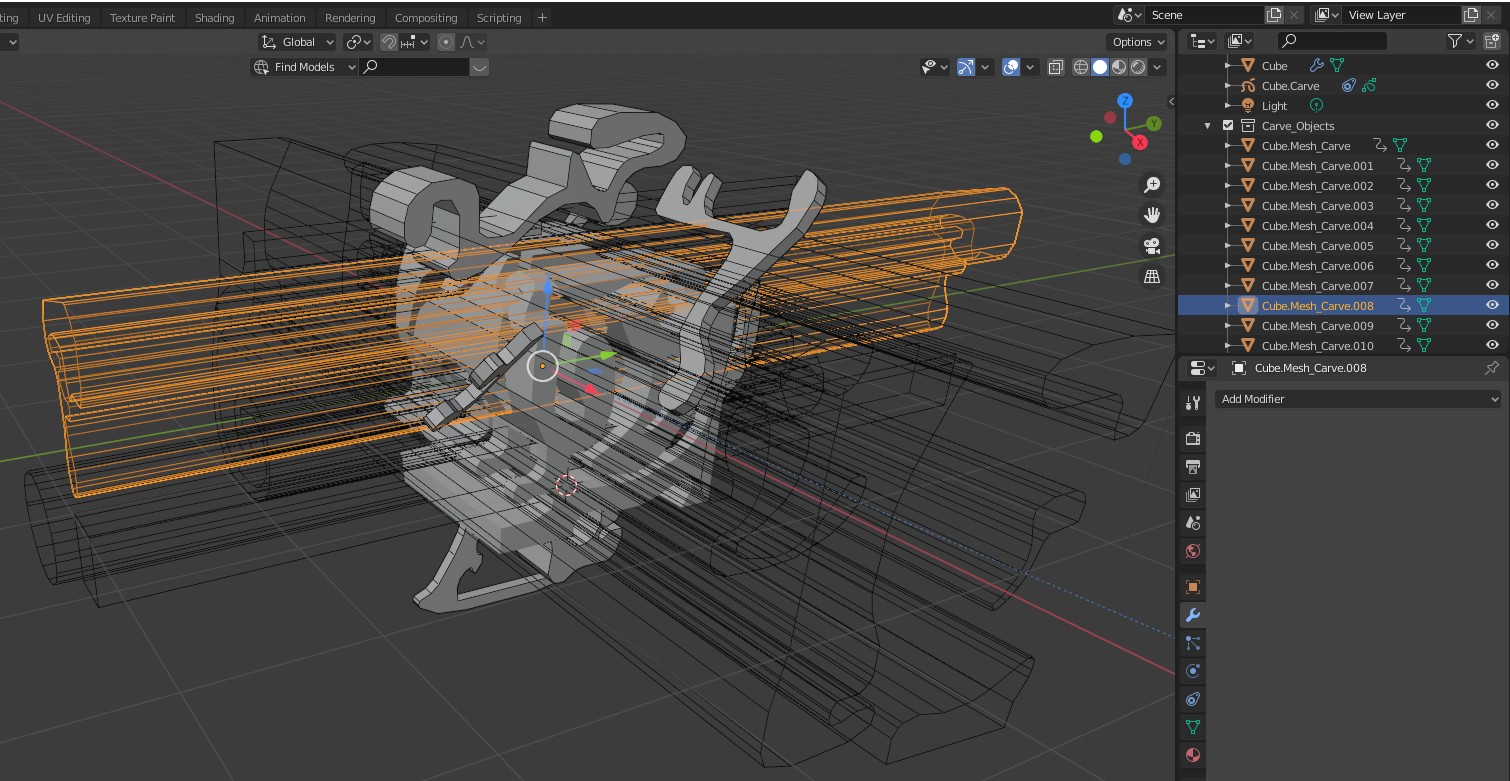
After a few operations with the "NonDestructive" mode on, you will find a stack of new objects under the "Carve_Objects" collection. These are the Boolean objects you have been creating every time you drew a shape and pressed "K". |
![]() |
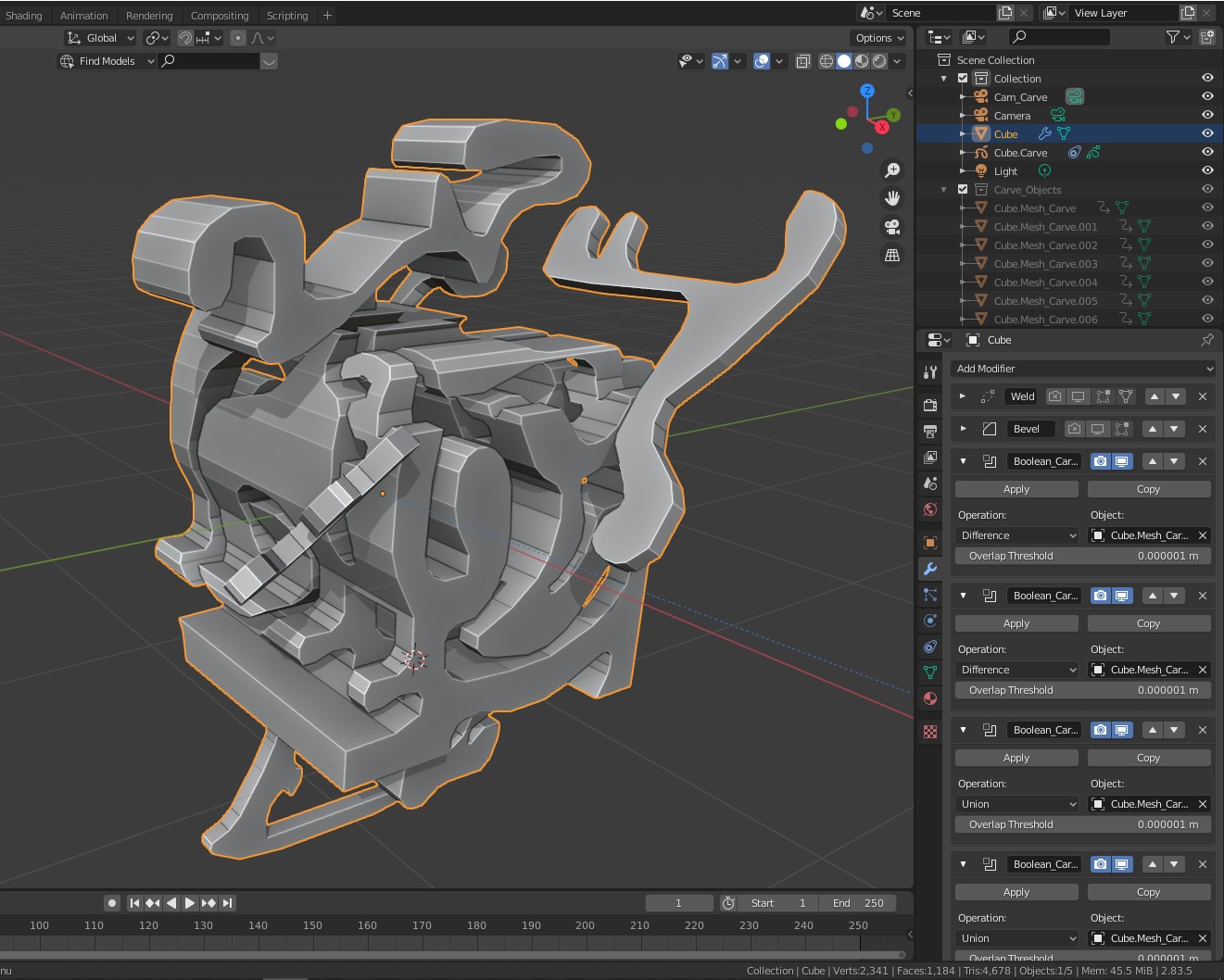
| If you turn on "Guides" you can see the Boolean objects in the 3D View port. If you switch to Object Mode and select them you can modify their size, position and rotations. You can also change the boolean options. |
![]() |
When you are satisfied with the results you can finalize them by pressing "K" to activate the addon and clicking the "Apply SCarve Modifiers" button at the bottom of the SketchN'Carve menu. |
![]() |
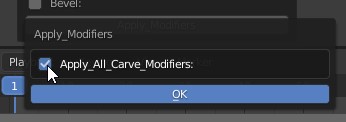
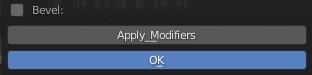
| This will bring up a new menu (a two step process for safety). Select "Apply All Carve Modifiers" and press "OK". |
![]() |
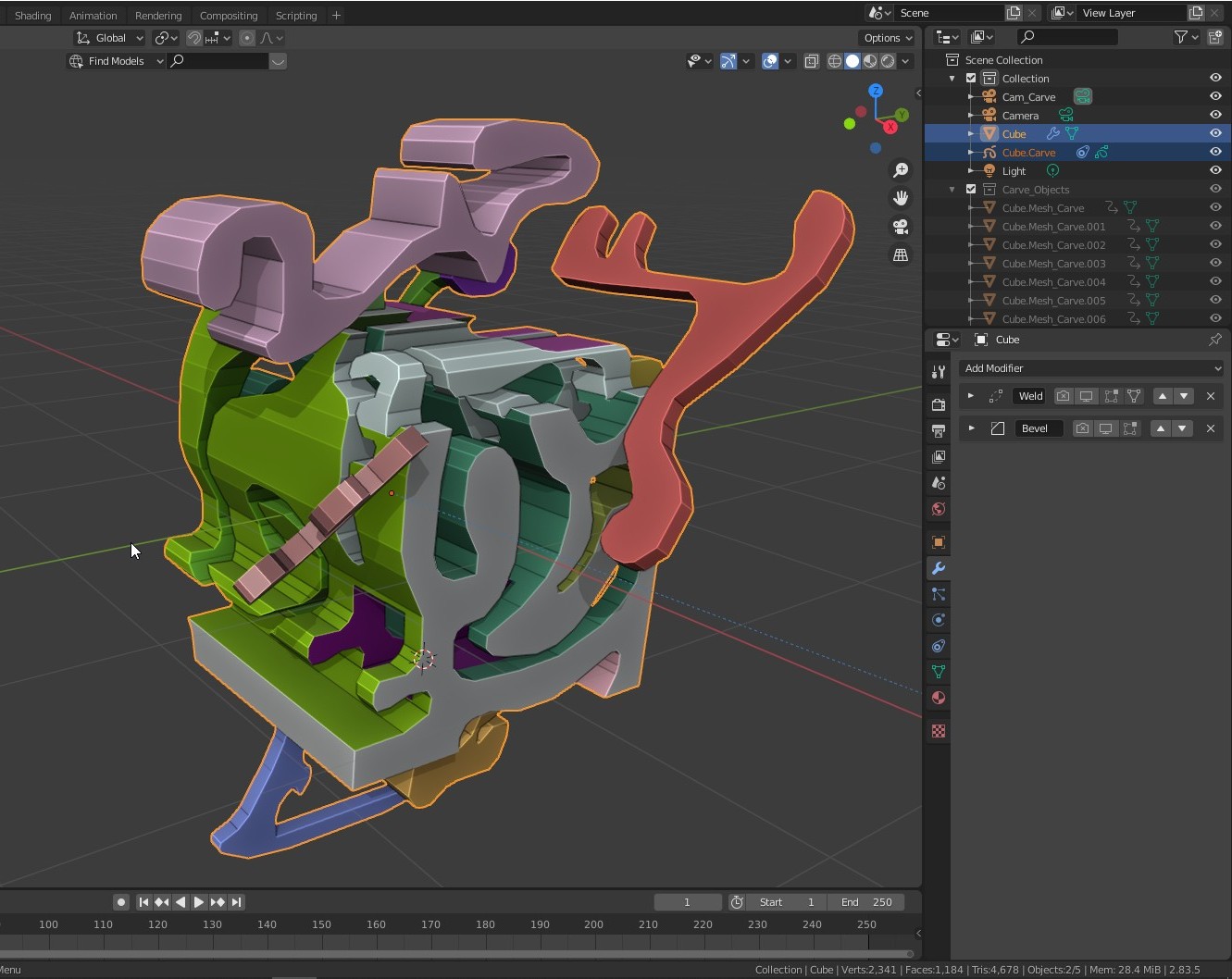
| This will apply all the "SketchN'Carve" modifiers in the stack and assign random new materials to the newly created geometry resulting with a colorful object. It will also delete all the boolean objects in the "Carve_Objects" collection as they are no longer needed. |
![]() |
SMART JOIN |
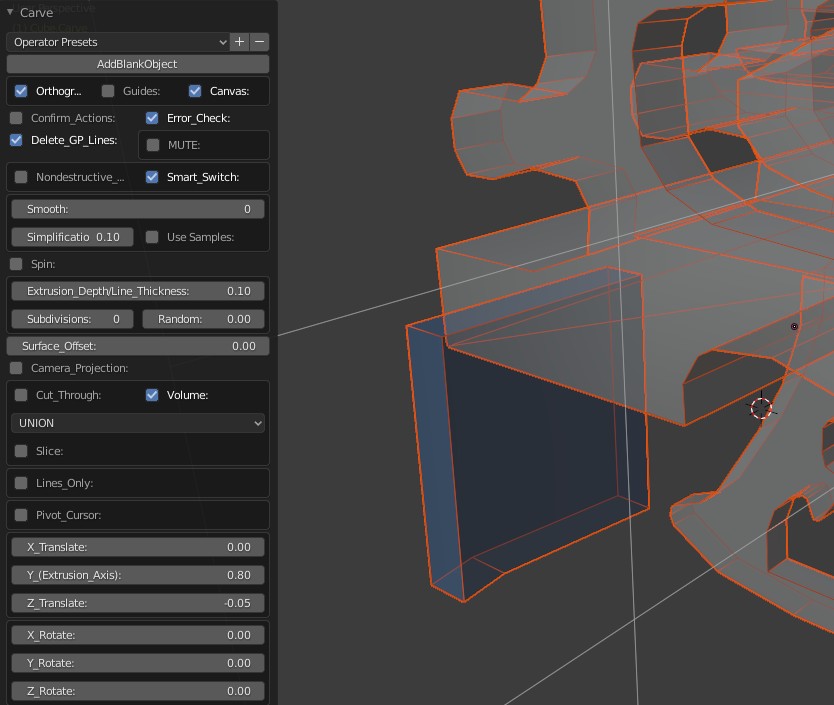
| In "Smart Join " mode Boolean Modifiers are only used in "Difference" or "Intersect" modes. In "Union" mode newly created object will simply be joined with the main object. This will reduce unnecessary new geometry which otherwise would be created with boolean operations. |
| Smart Join on: |
![]() |
| Smart Join off: |
![]() |
| Note: Be mindful not to cut into joined parts simultaneously with the base object, as this will confuse the boolean operator and create artifacts. |