LINES_ONLY Mode
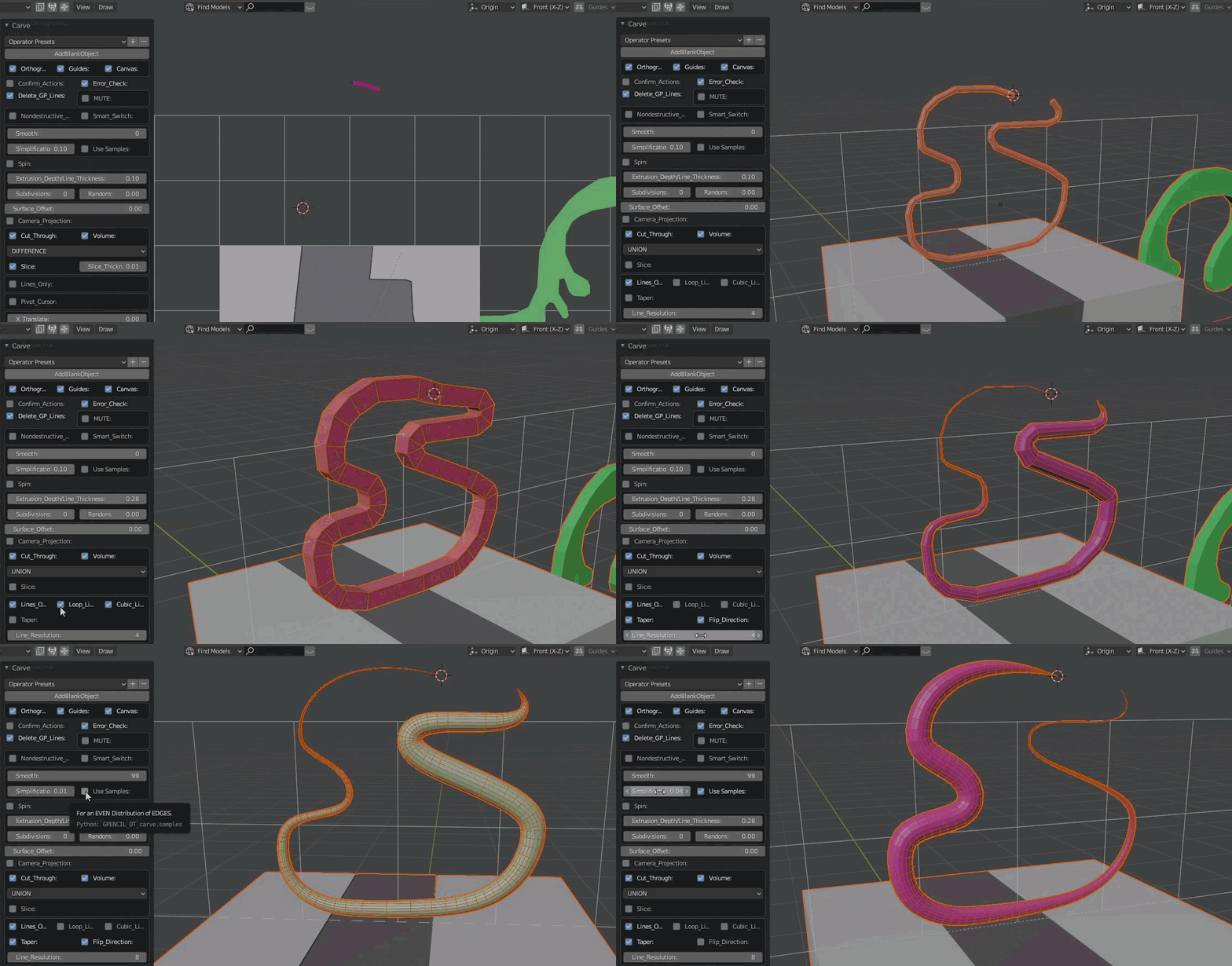
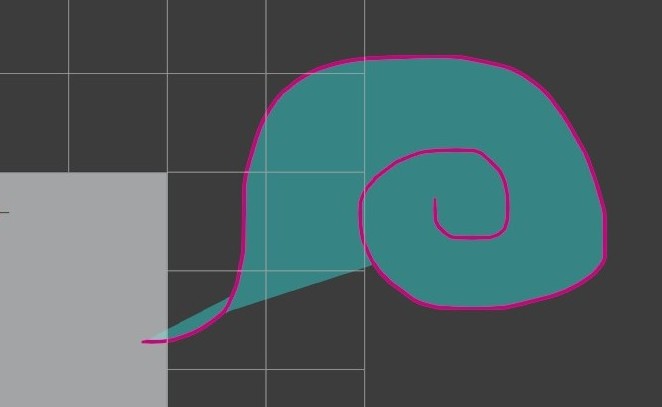
Press K.
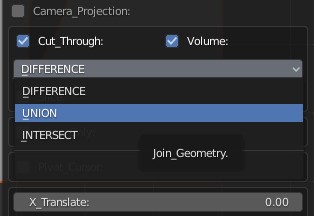
Expand the menu from the bottom left corner of the screen. If you are adding to the overall geometry Select "ADD"(Union).
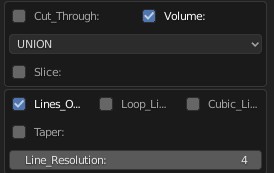
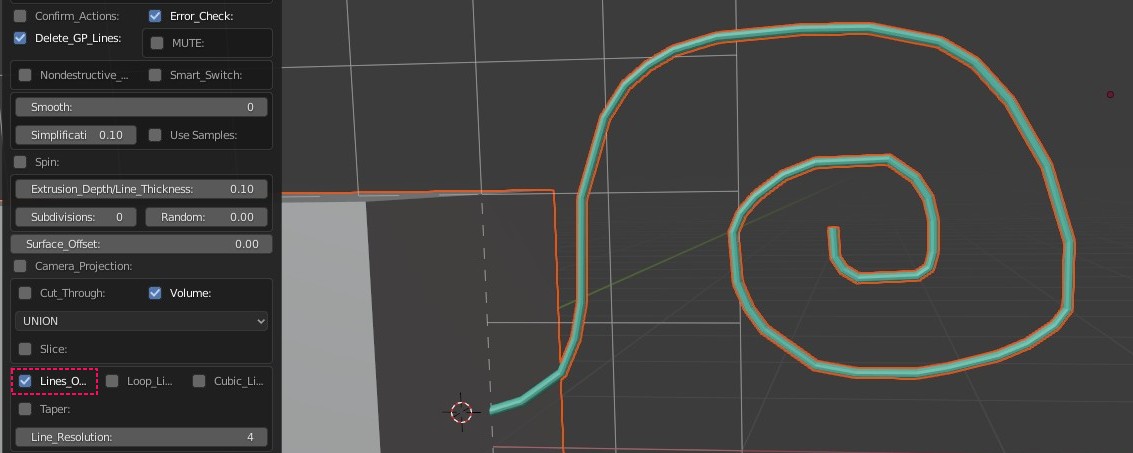
This will create a mesh object using only the contours of the shape you have drawn.
LINES_ONLY Mode |
|
| Using the drawing pen draw a shape. |
|
Press K. Expand the menu from the bottom left corner of the screen. If you are adding to the overall geometry Select "ADD"(Union). |
|
| Select "Lines Only" option. |
|
This will create a mesh object using only the contours of the shape you have drawn. |
|
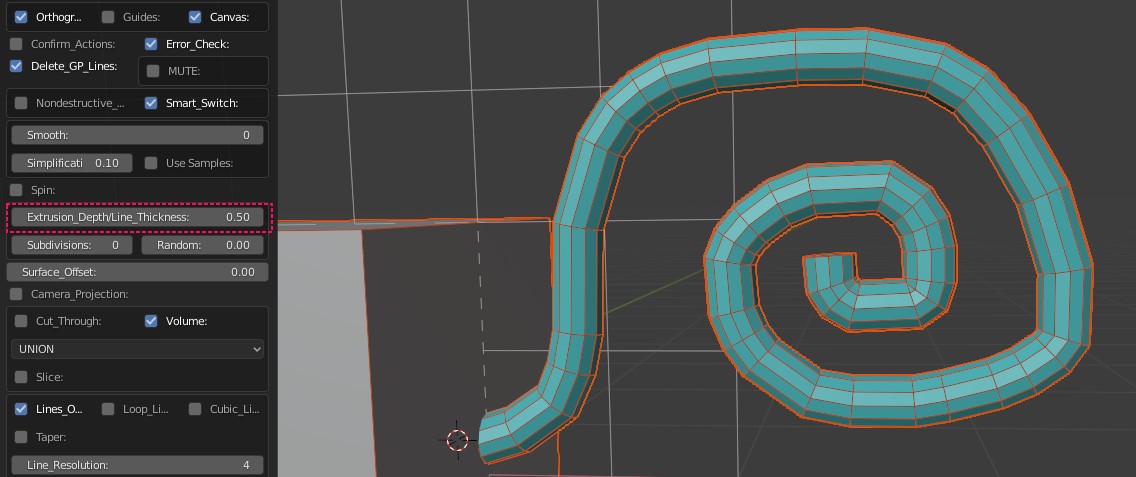
| Adjust the "Line_Thickness" to change the thickness. (In newer versions this is found under "Lines_Only" tab. |
|
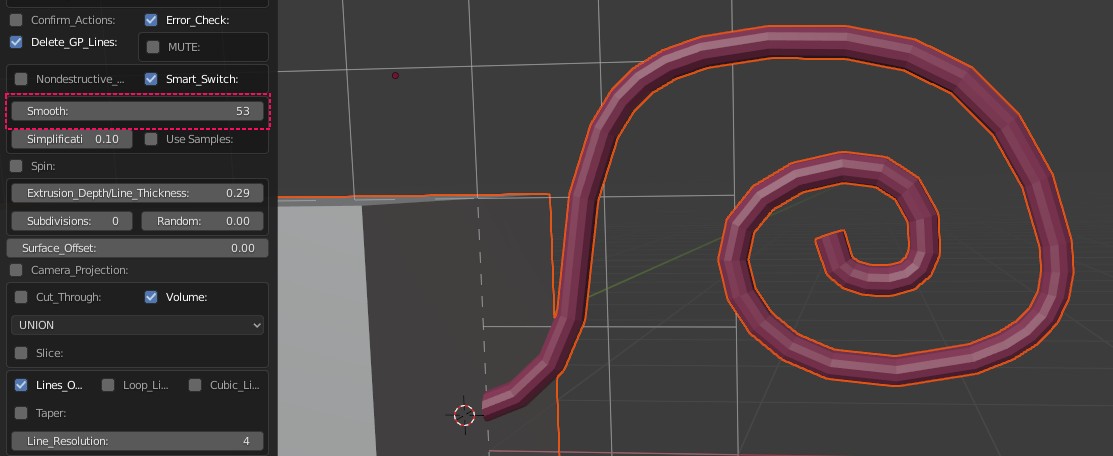
| Increase the "Smooth" slider to make the profile smoother, less jagged. |
|
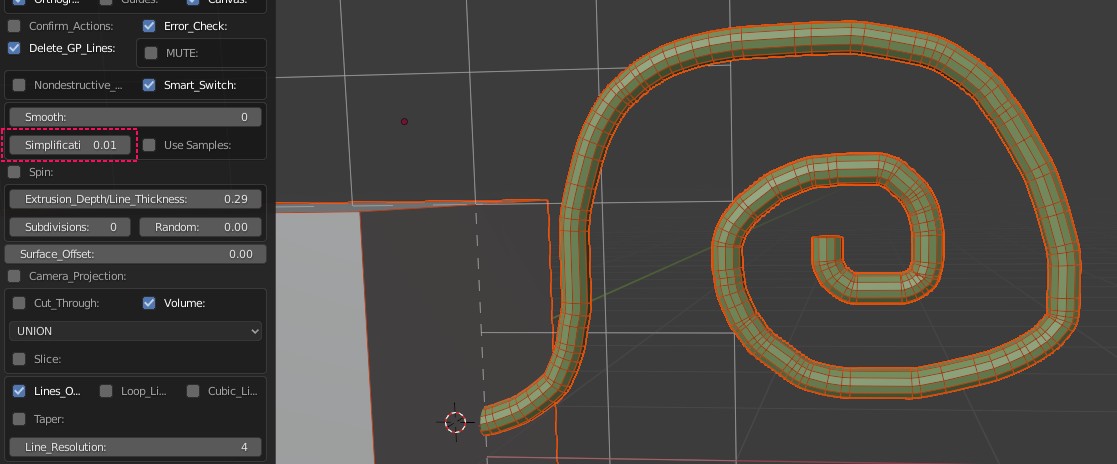
| Decrease the "Simplification" to increase the resolution. |
|
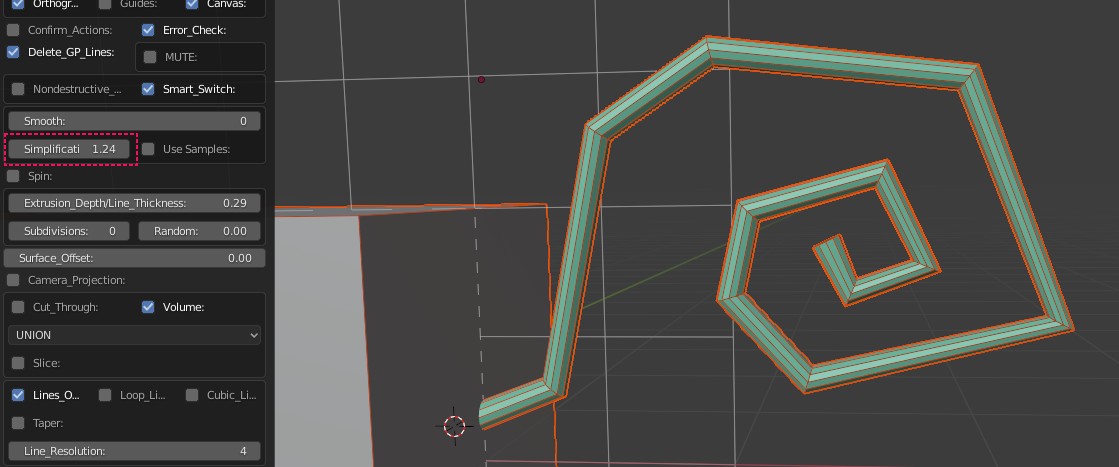
| Increase the "Simplification" for a lower resolution. |
|
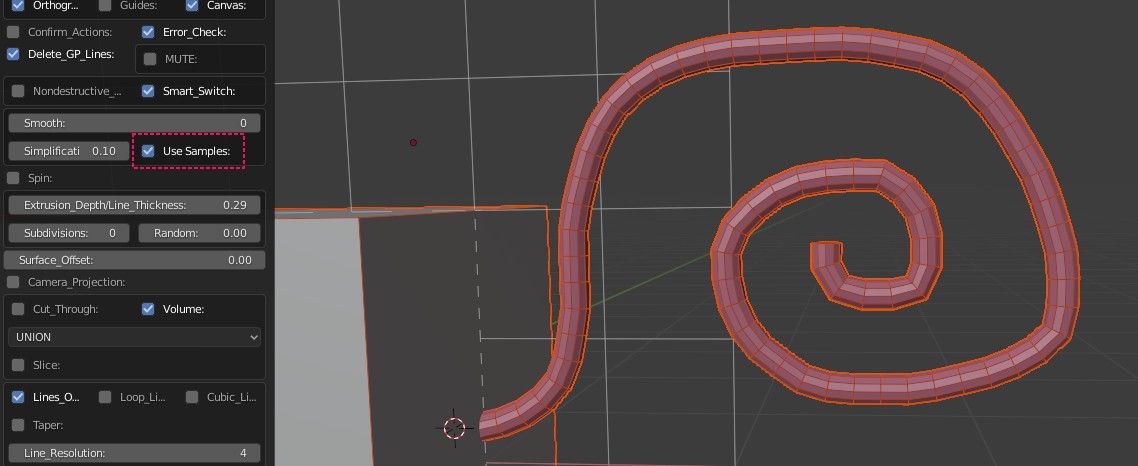
| For an evenly distributed edges choose "Even Spacing ". |
|
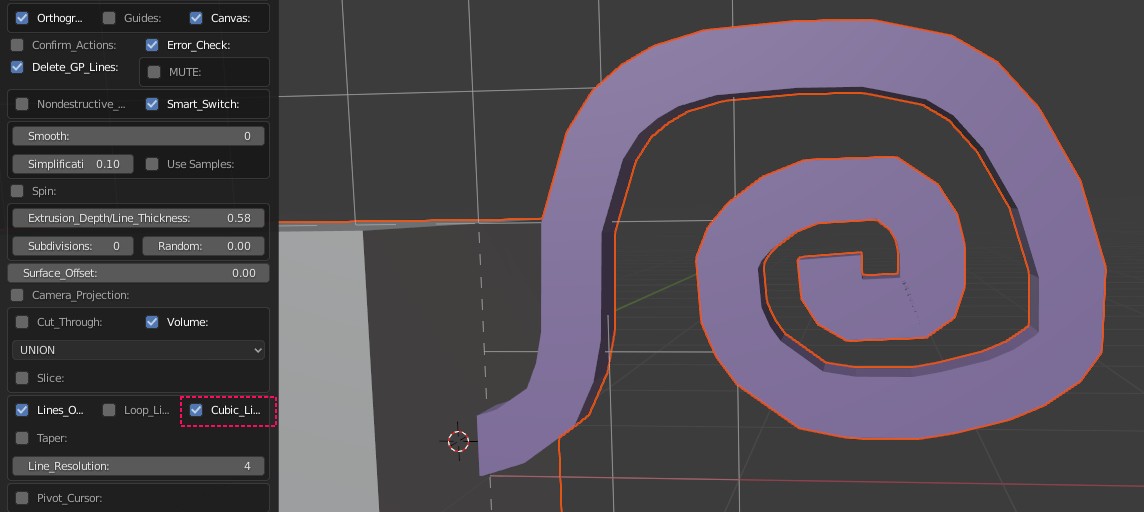
| Choose "Cubic Lines" option for a cubic cross section (or "Custom" if you have drawn a custom profile). |
|
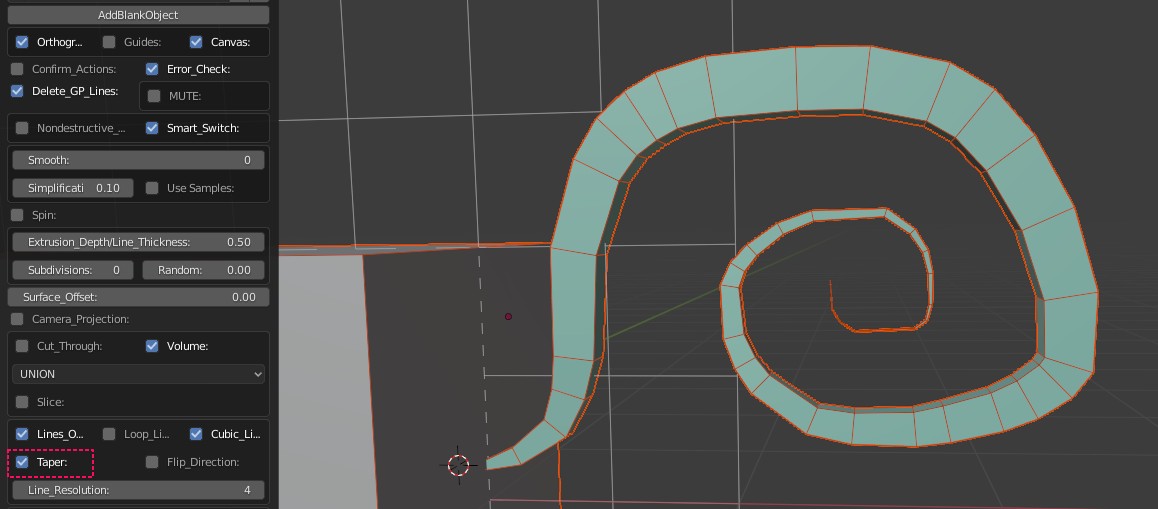
| Select "Taper". |
|
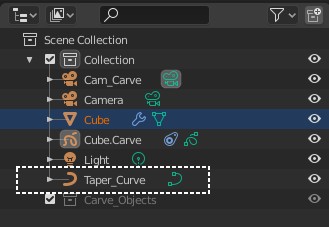
| This will add a new curve object named "Taper_Curve". |
|
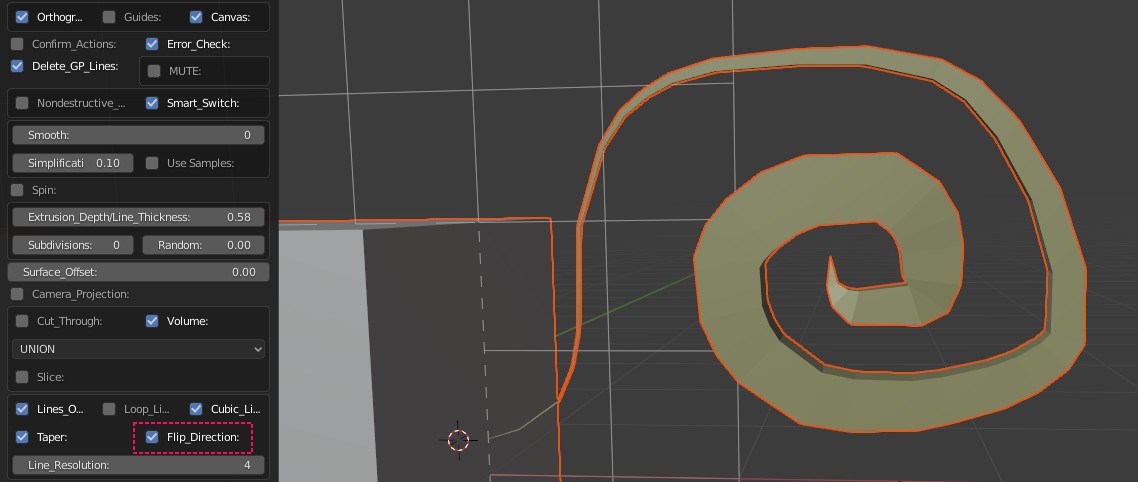
| Select "Flip_Direction" to flip the taper effect. |
|
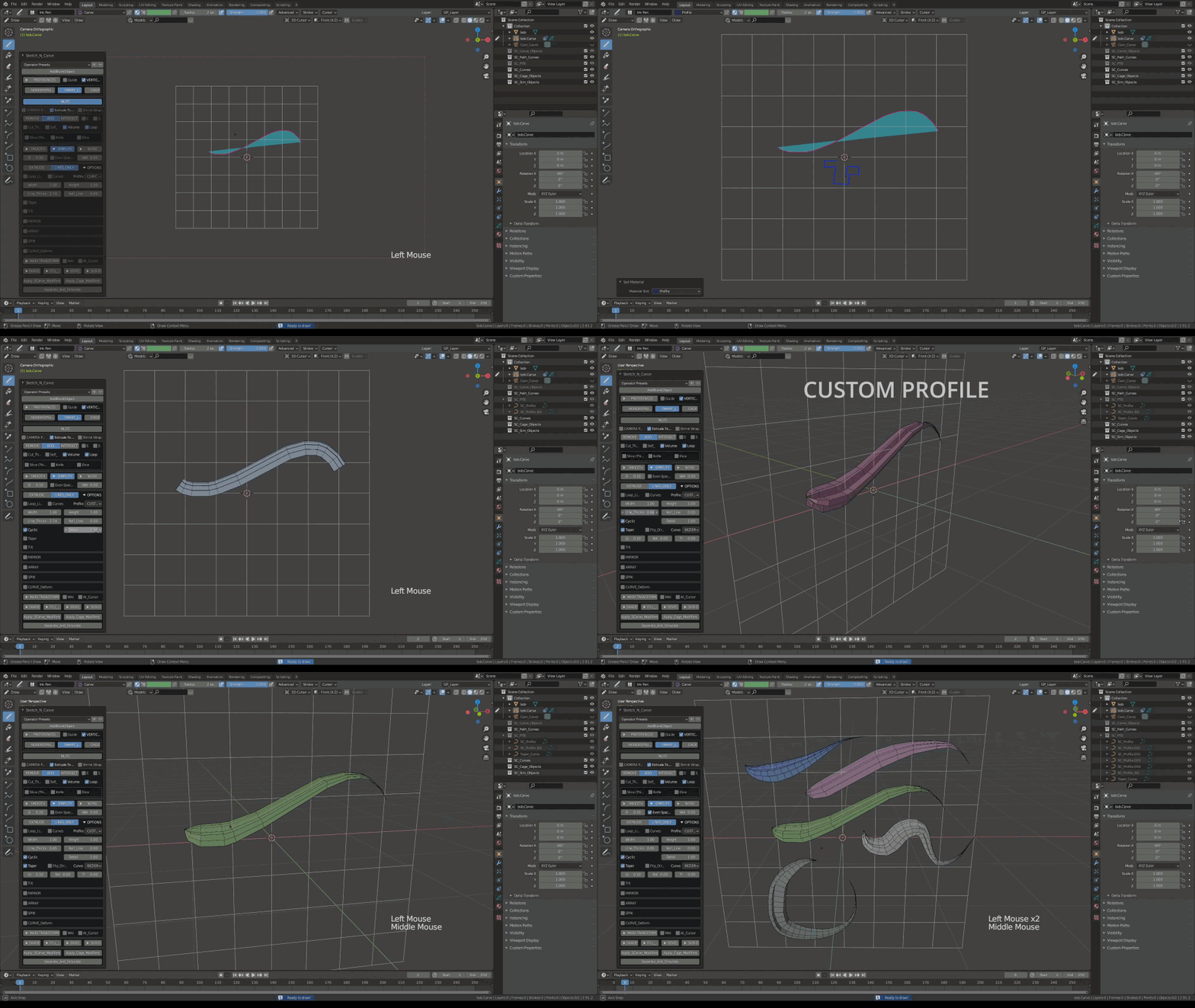
| CUSTOM PROFILE |
| With the "Profile" material selected draw the shape that will be the bevel shape for your line. |
|
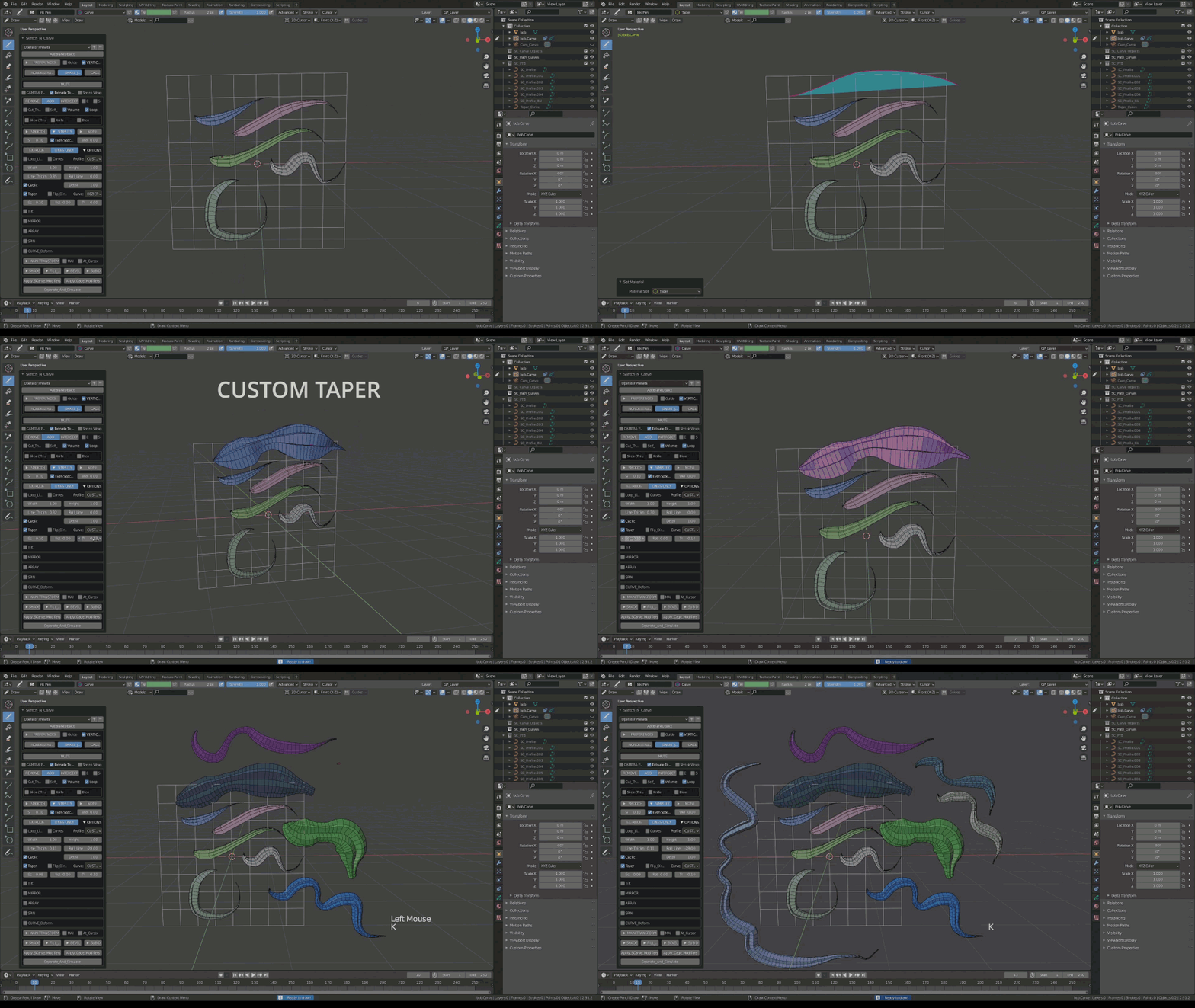
| CUSTOM TAPER |
| Using the "Taper" material draw the shape to taper your line. |
|
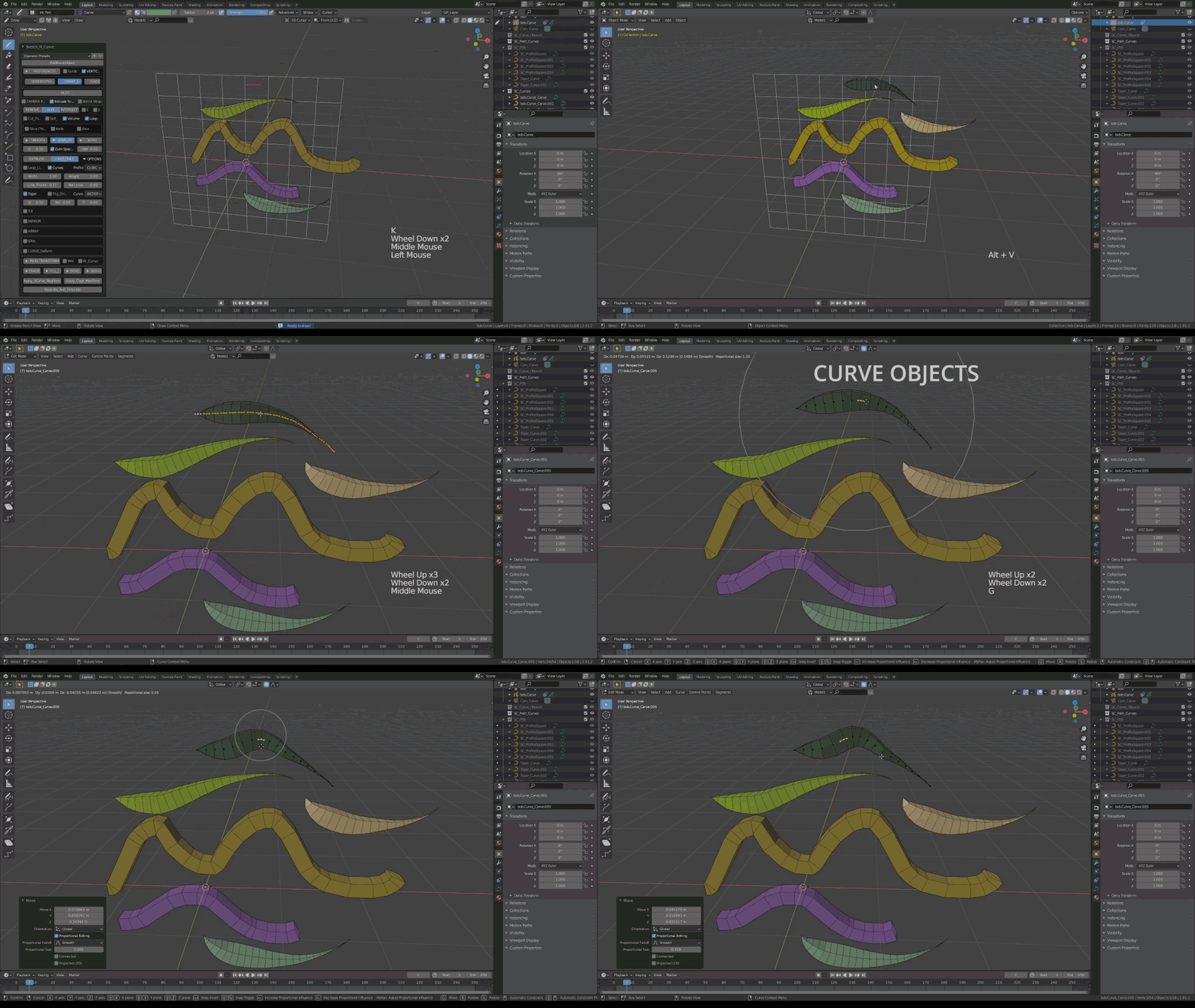
| CURVE OBJECTS |
| Turn on "Curves" button to keep your lines as curve objects. |
|