CURVE DEFORM
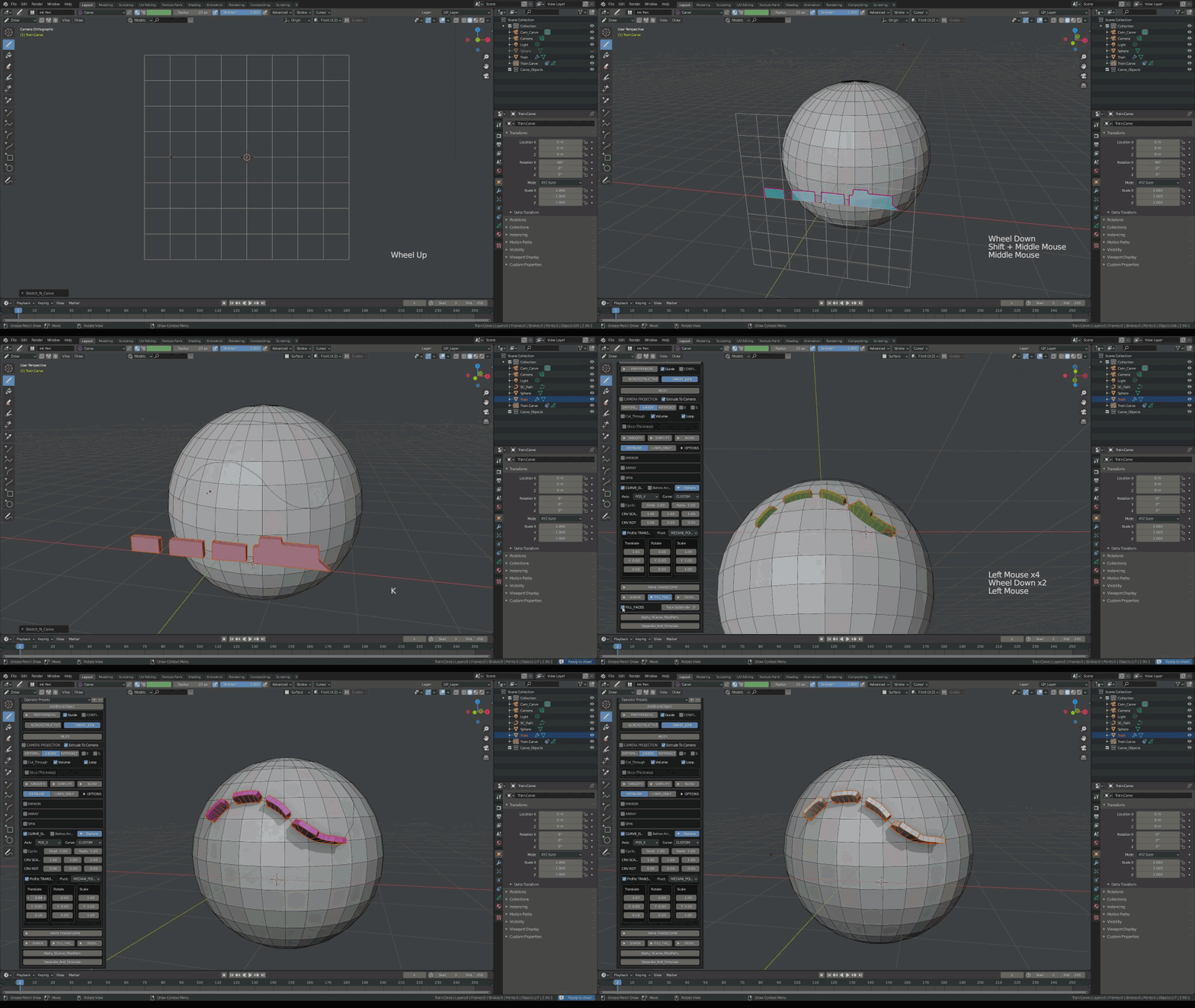
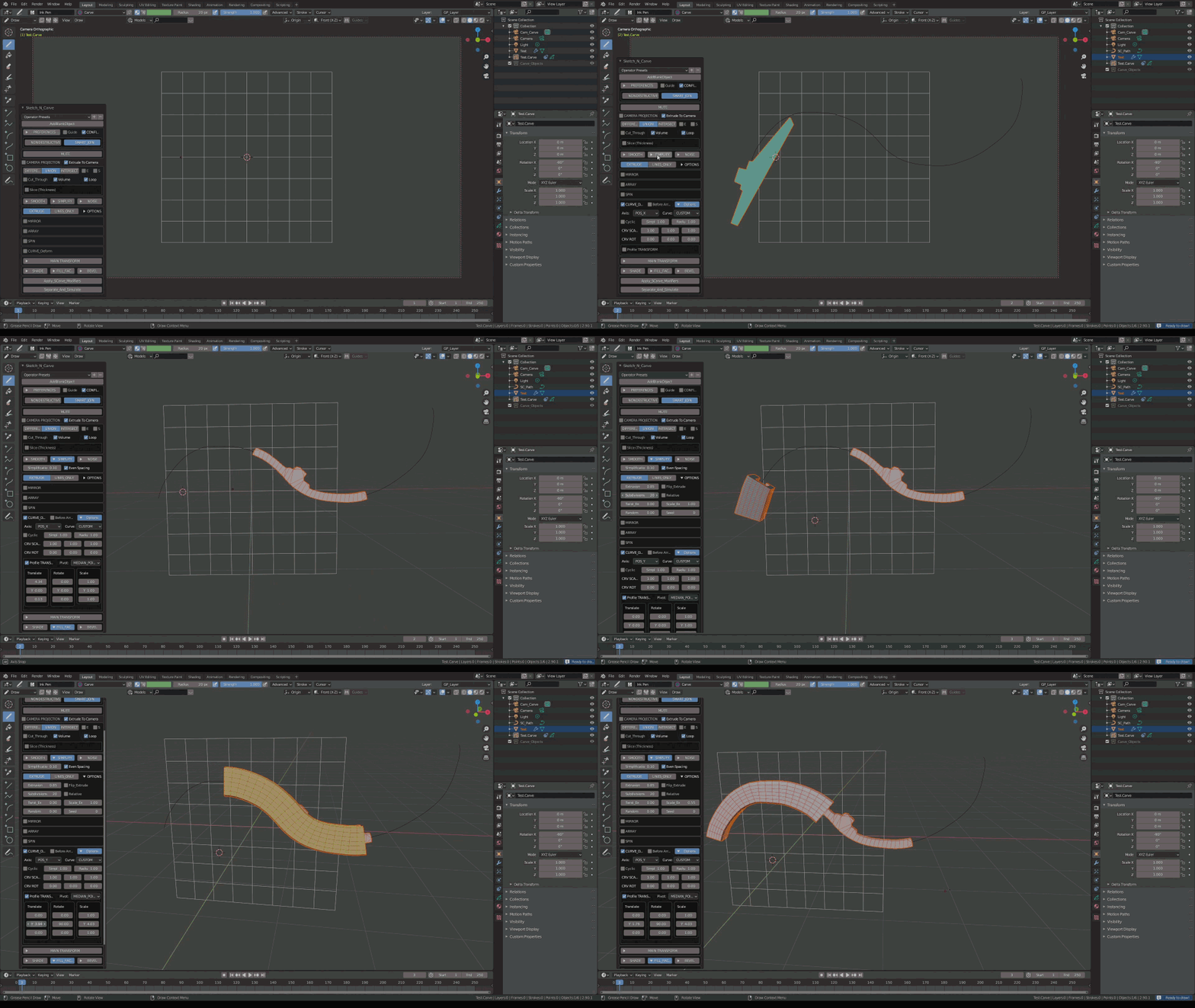
Curve Deform: Bend Bricks To Create A Well Wall
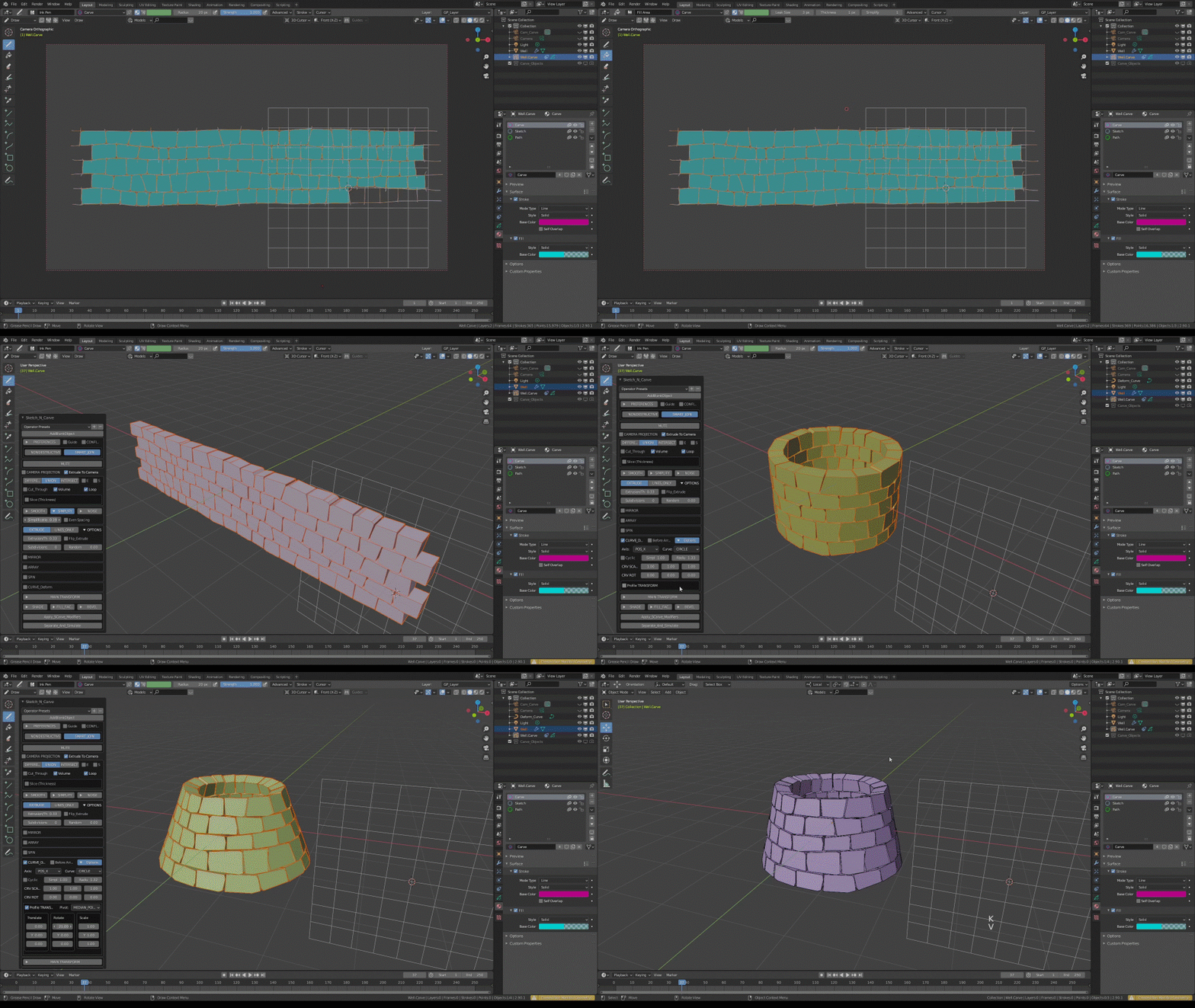
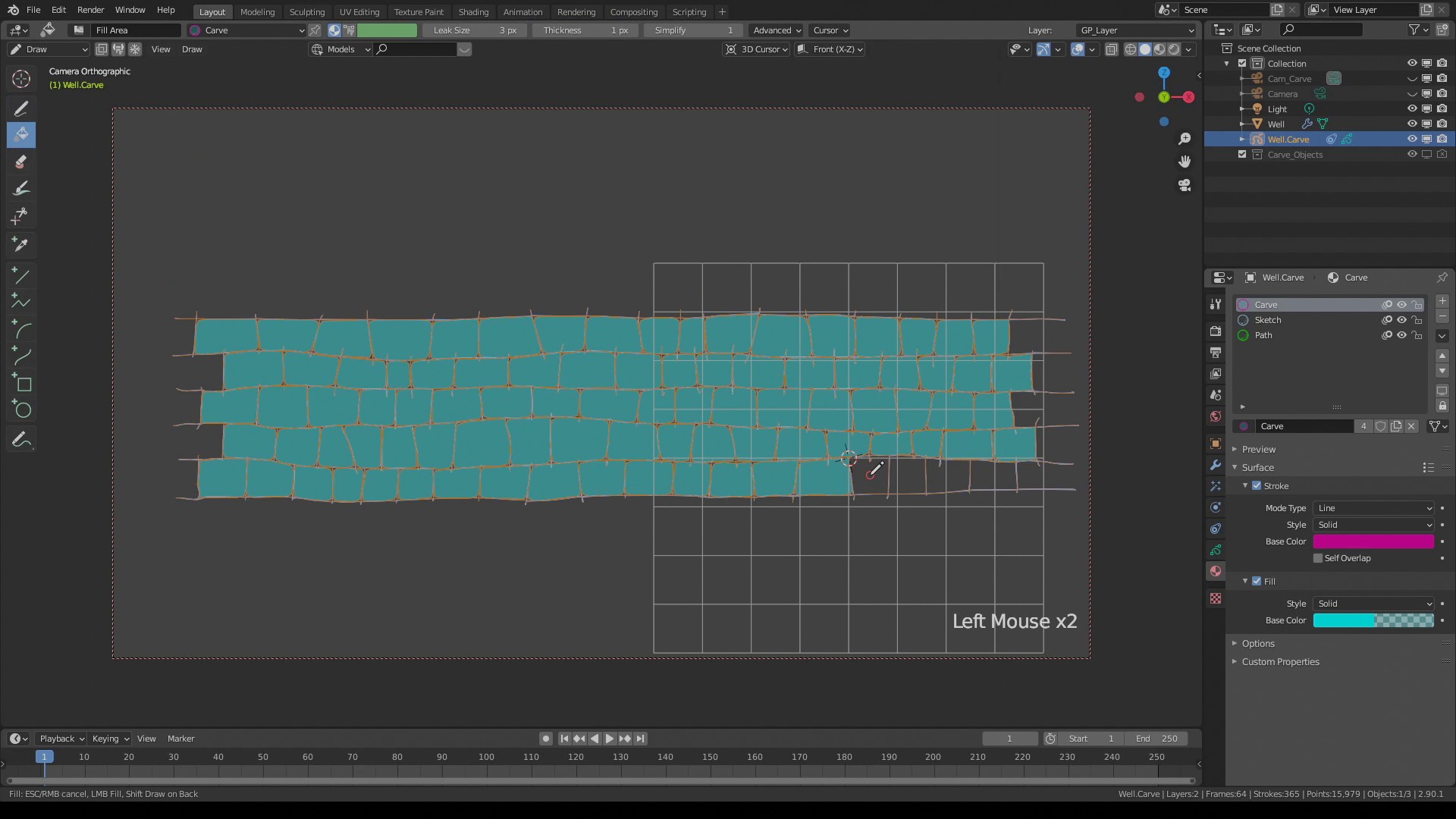
Using the Grease Pencil tools draw a wall. Use the "Sketch" material to outline your shape and fill it with the "Carve" material using the Fill tool. Only the strokes using the "Carve" material will be converted to geometry and the strokes drawn with the Sketch material will be ignored.
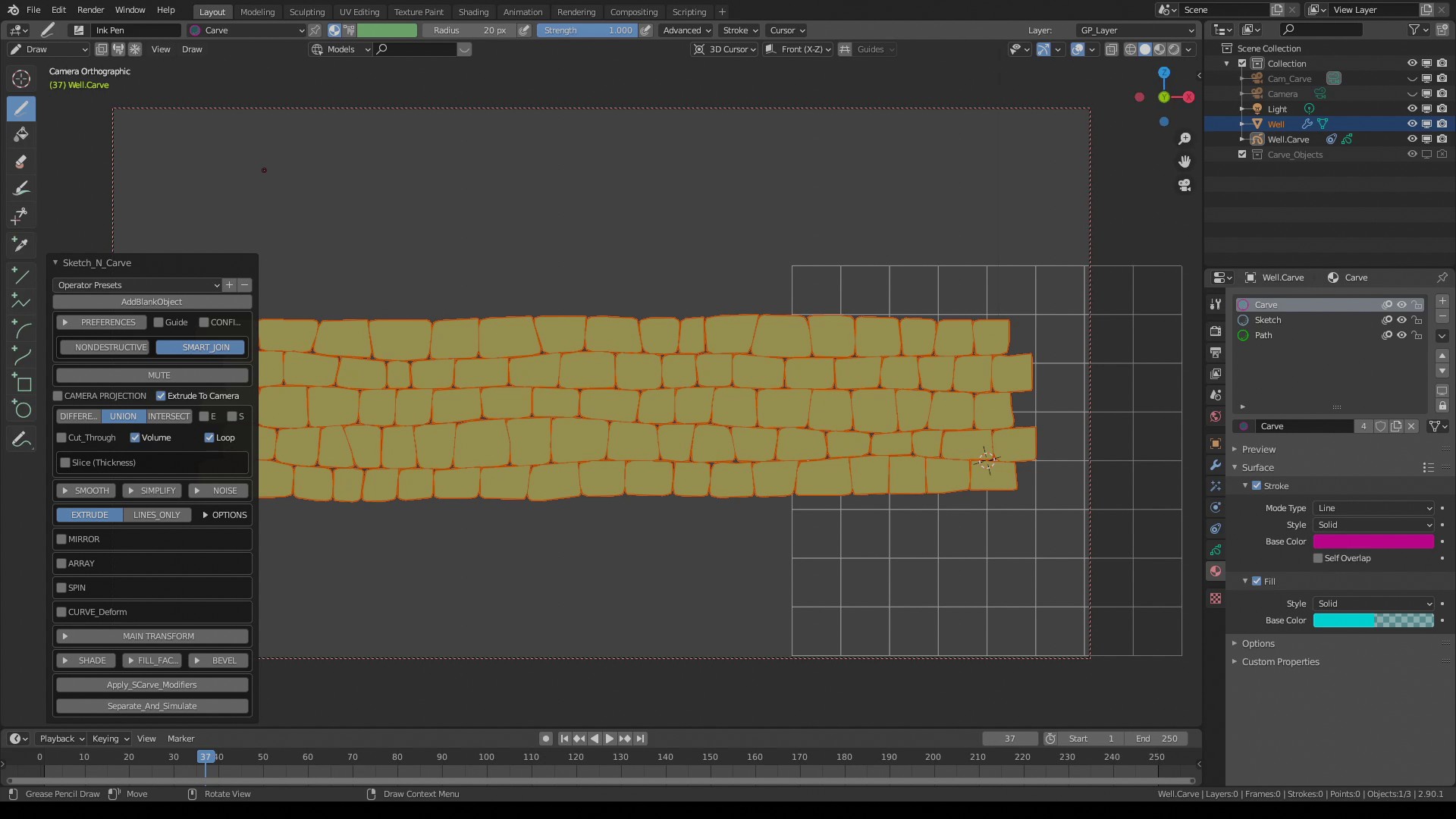
Press K. If you have not turned off the "Confirm Actions" press OK or ENTER.
Expand the menu from the bottom left corner of the screen. Select "UNION".
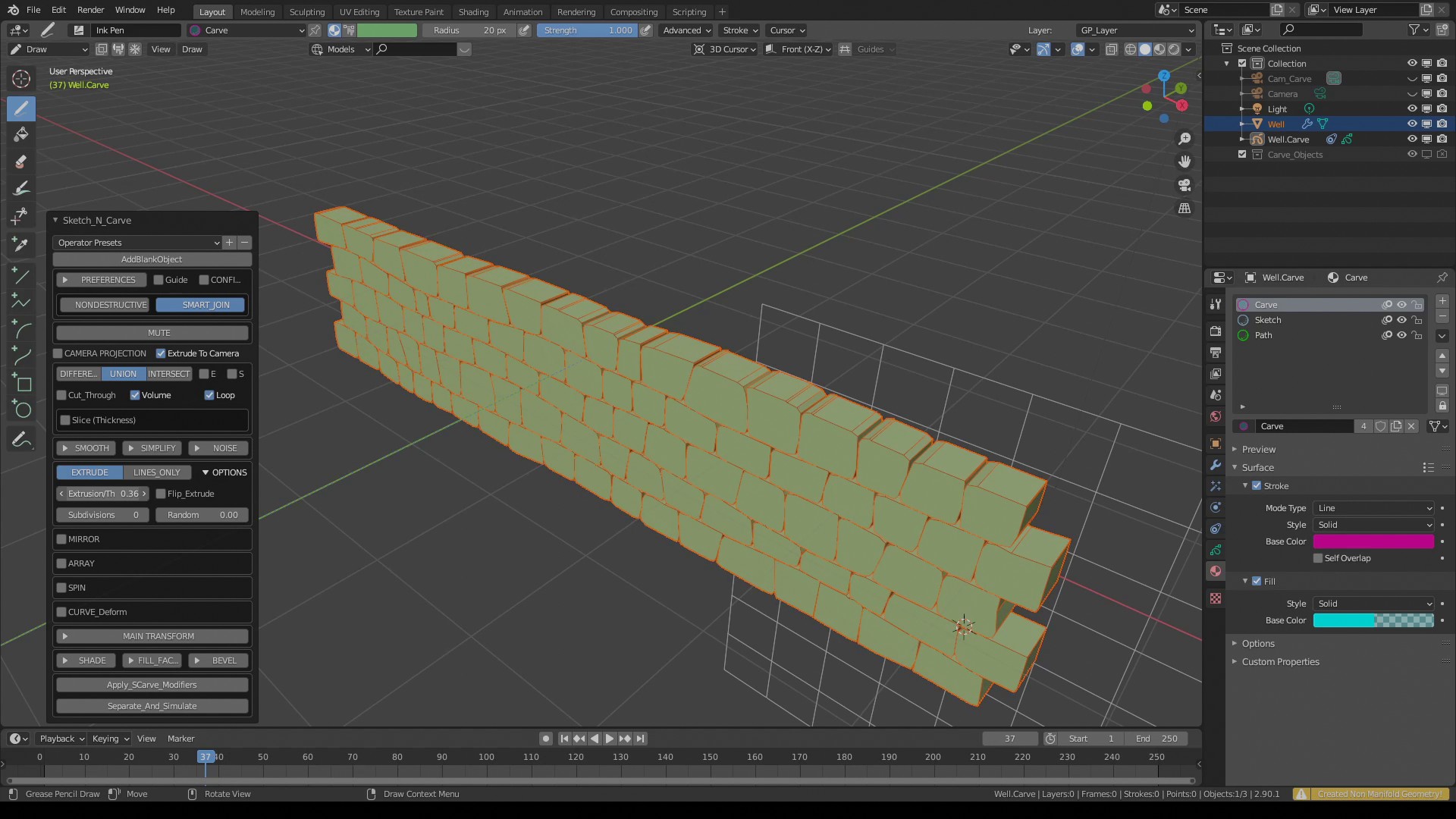
Switch to perspective view by pressing "0" on numeric pad. Increase or decrease the extrusion depth to your liking.
Click "Curve_Deform". This will assign the Curve Deform operator on your object, bending it along the selected axis. The default axis is "X".
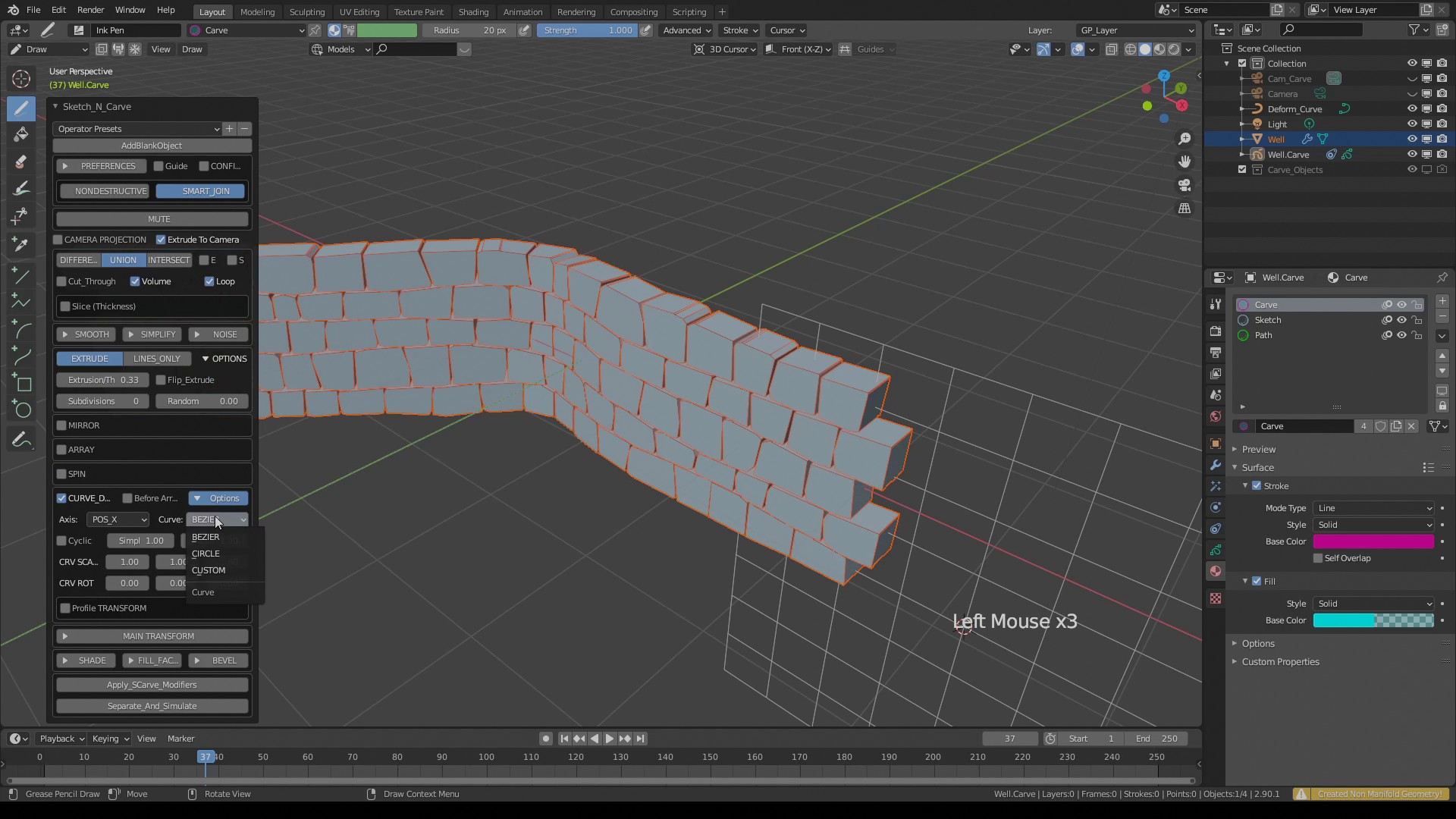
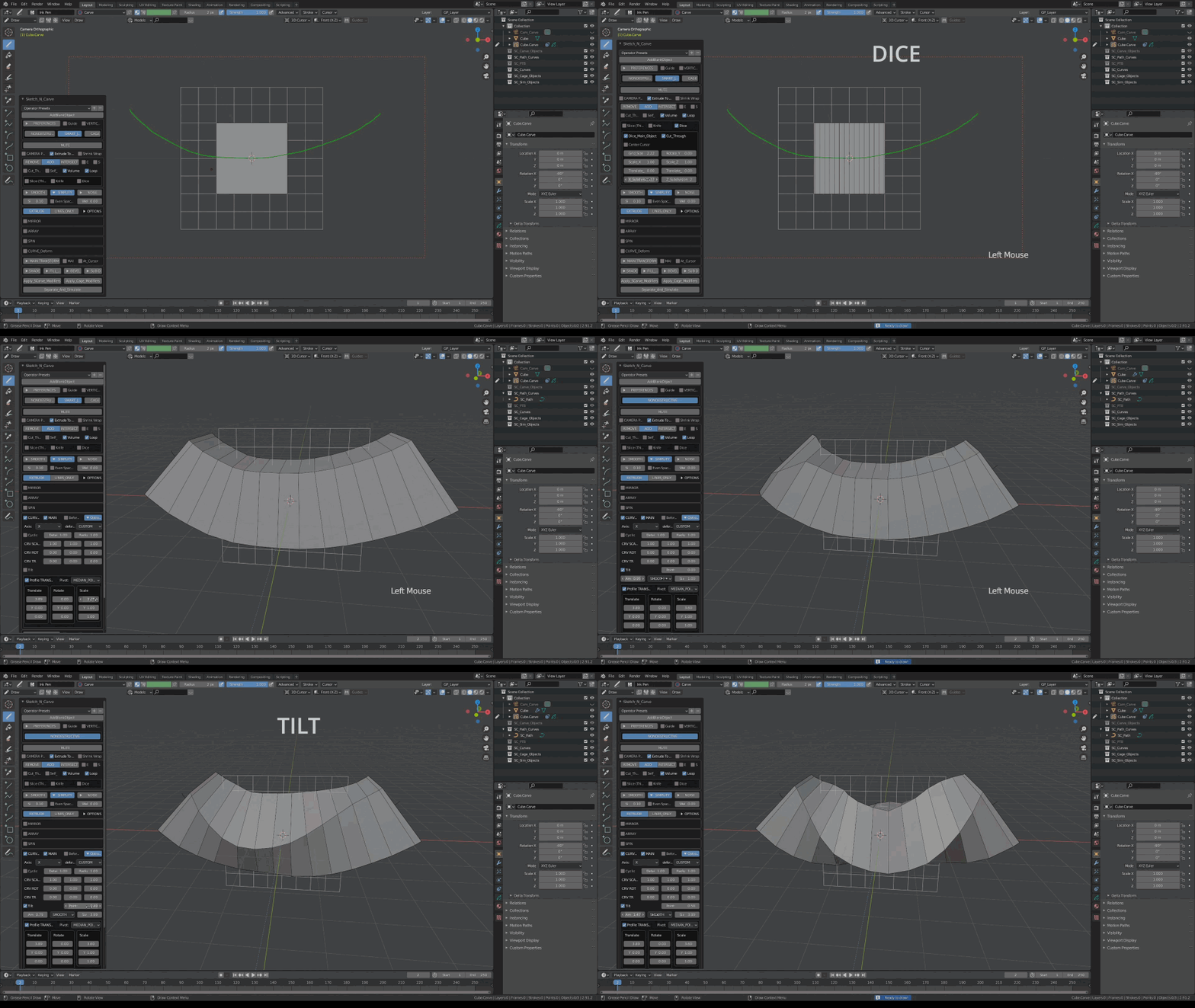
Expand the "Options" menu and Change the Curve type, in this case to "Circle".
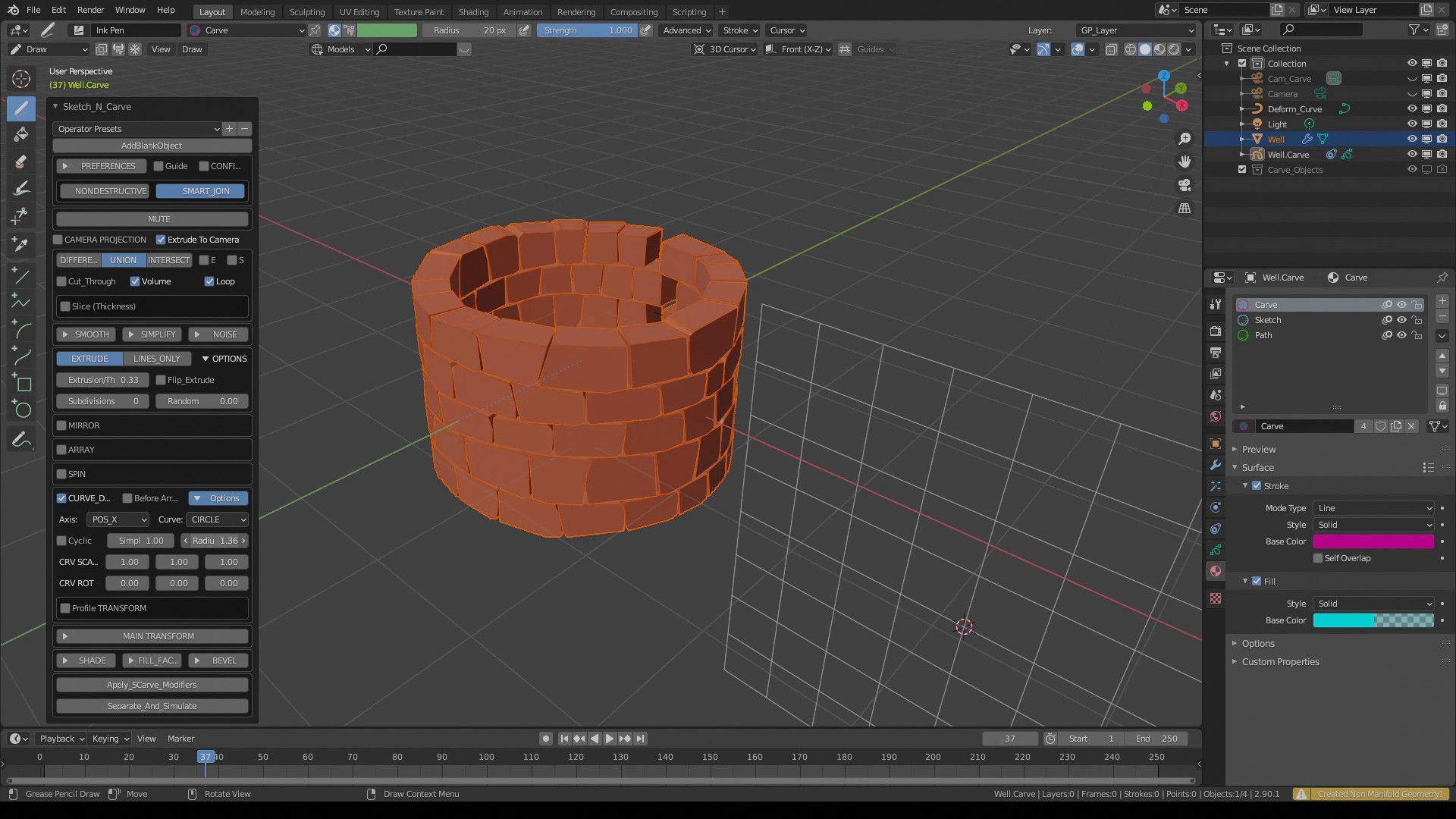
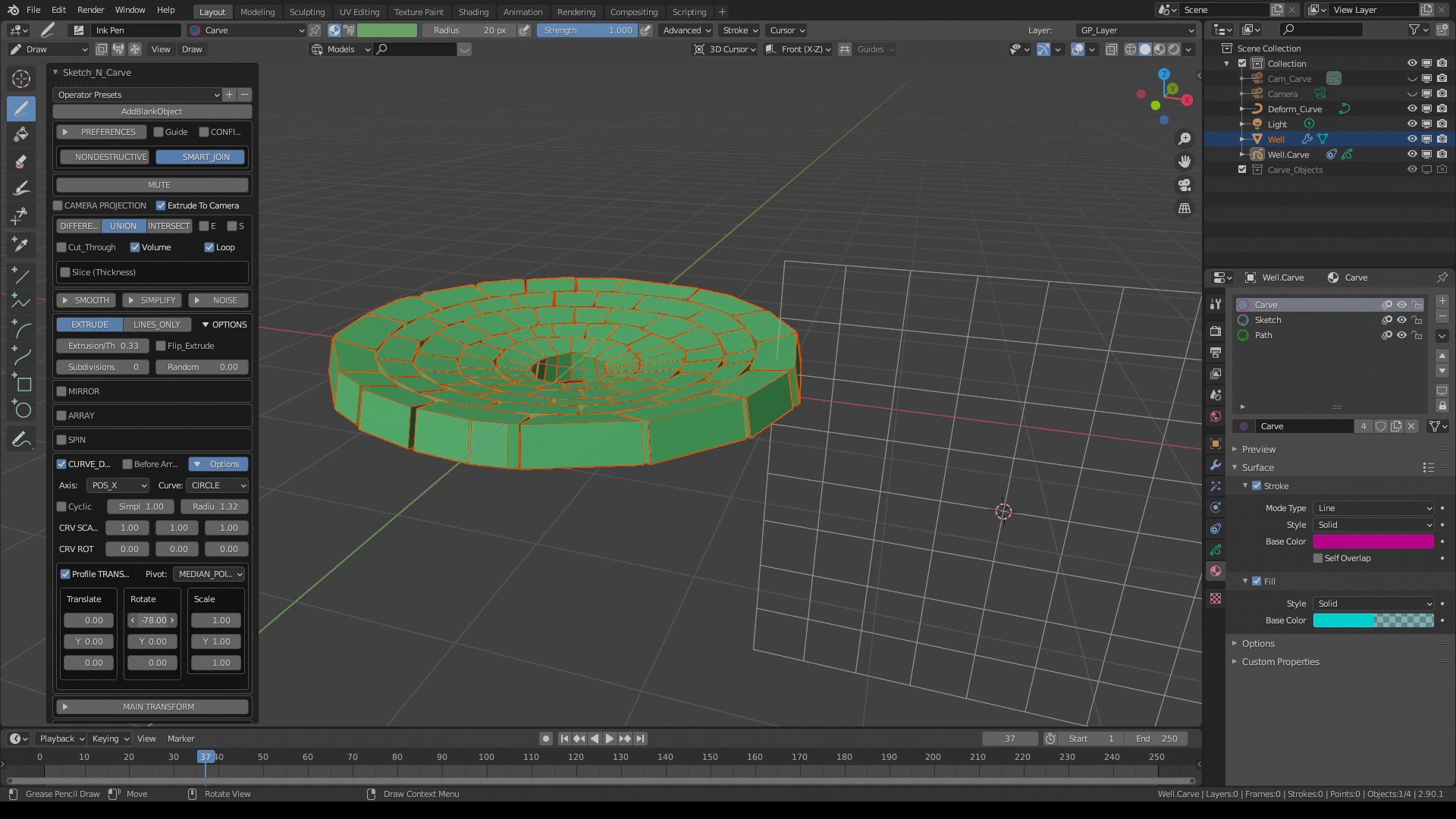
Increase or decrease the "Radius" to fit your shape. Expand the "Profile Transform" menu and rotate the profile around "X" axis. Below is an example of a radial cobble stone floor.
Adjust the angle to get a similar shape as below to create a "well".
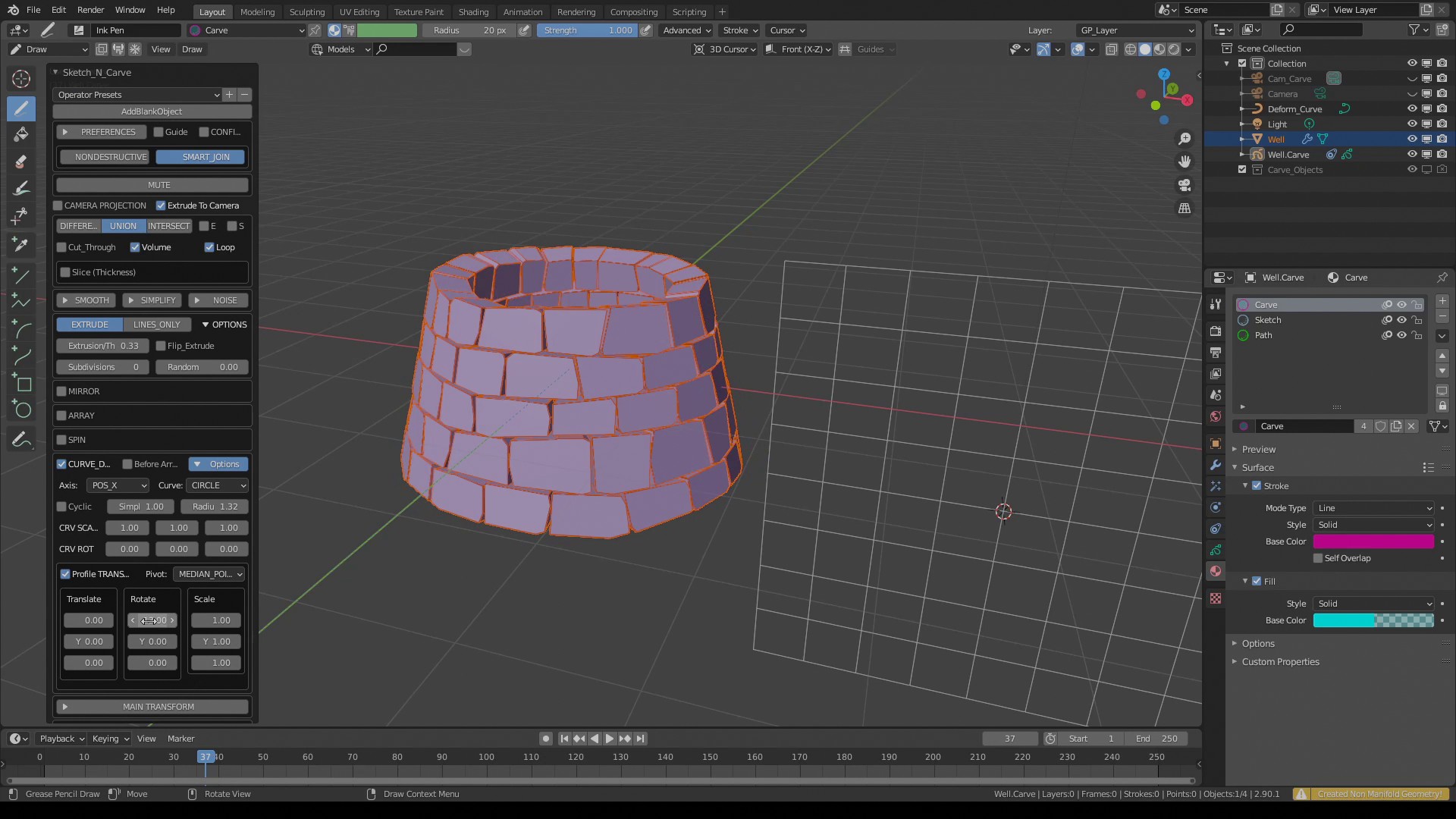
Well done!:)