CAMERA PROJECTION

 
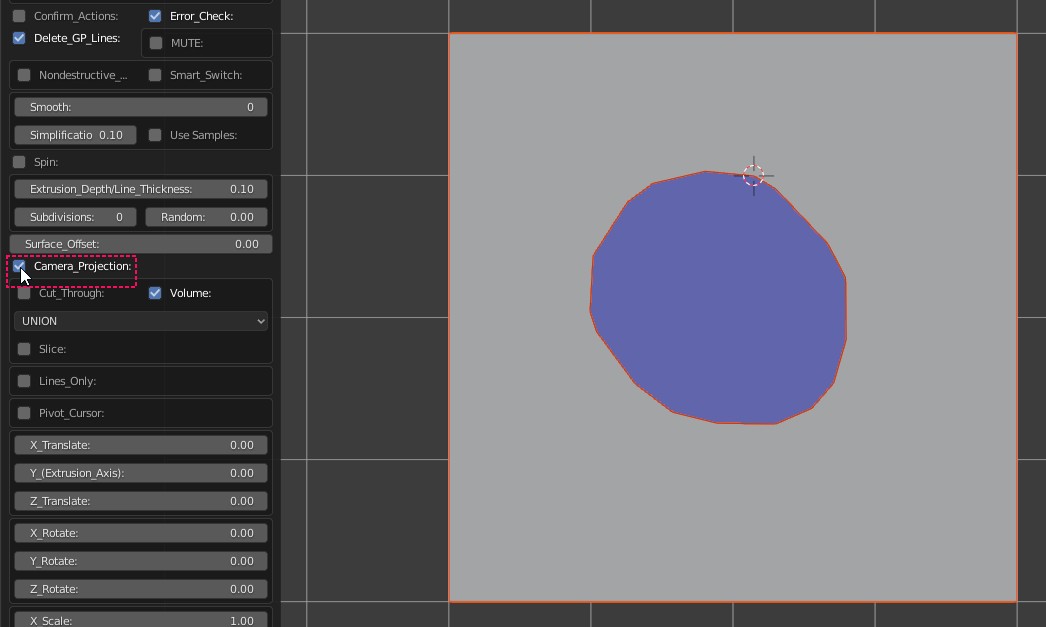
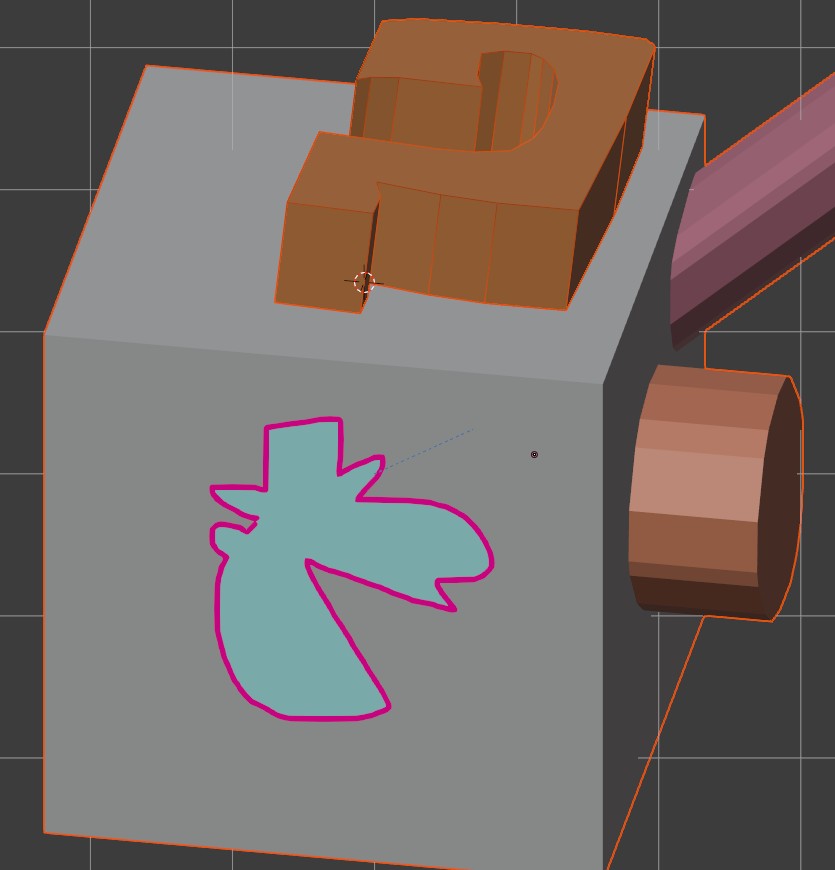
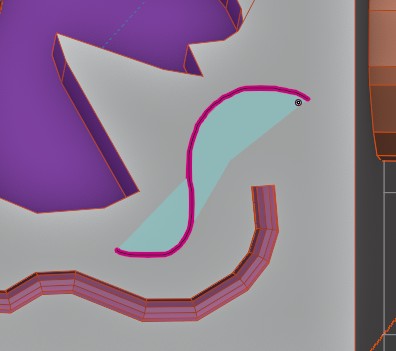
Using the drawing pen draw a shape overlapping with an object.
cam0

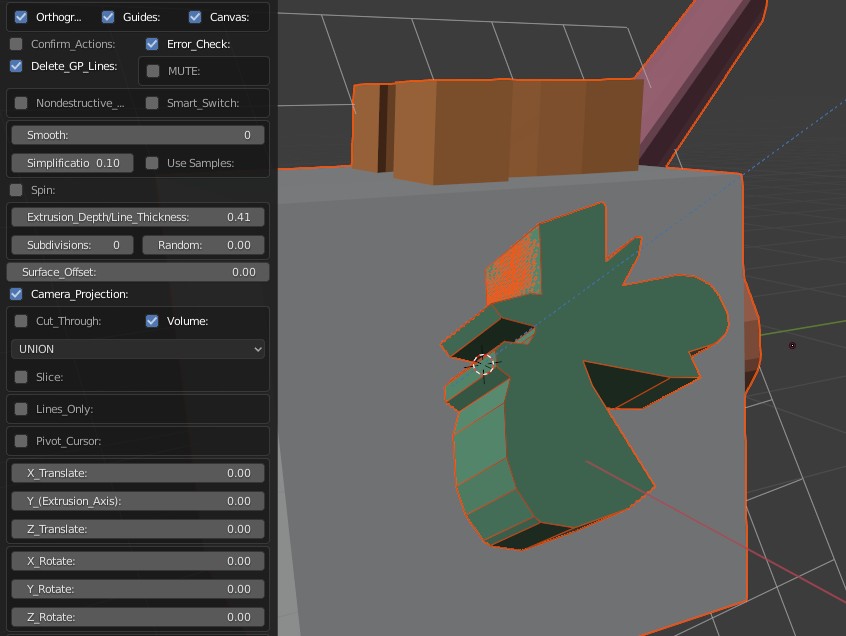
Press K. If you have not turned off the "Confirm Actions" press OK or ENTER.

Expand the menu from the bottom left corner of the screen. Select "UNION" boolean option .
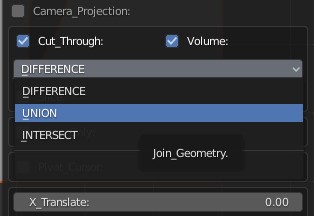
dif
If you are in default mode your lines might be burried inside the main object. If you wanted them to be on the surface of the object select "Camera Projection".
cam1
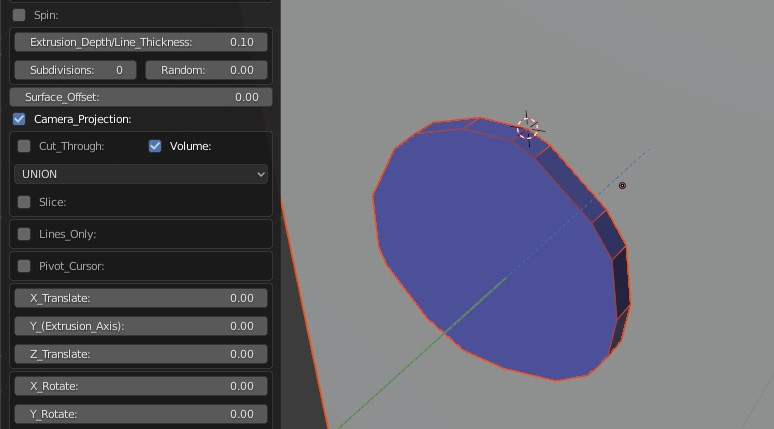
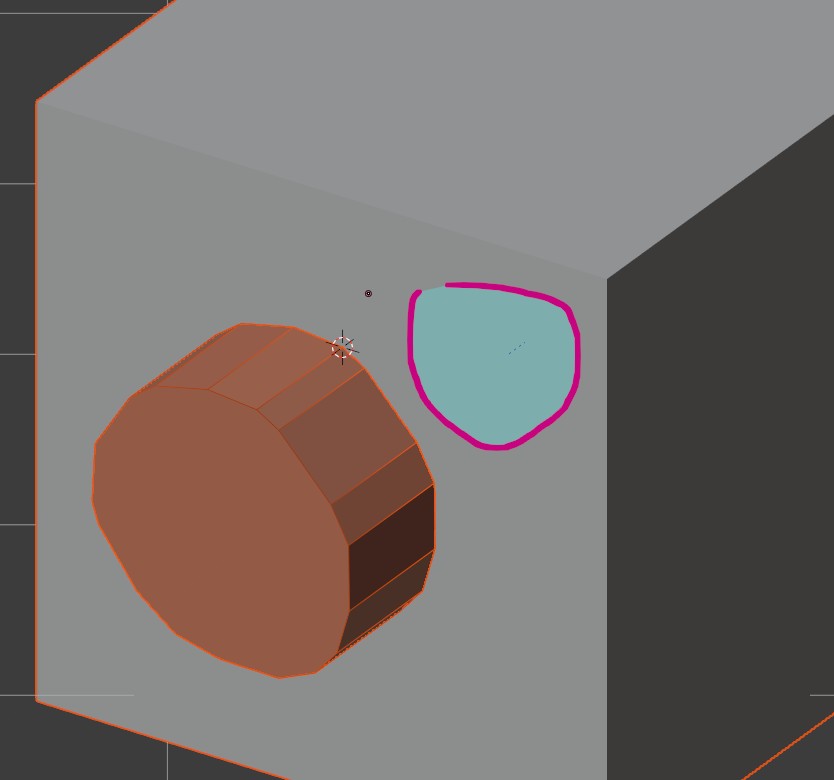
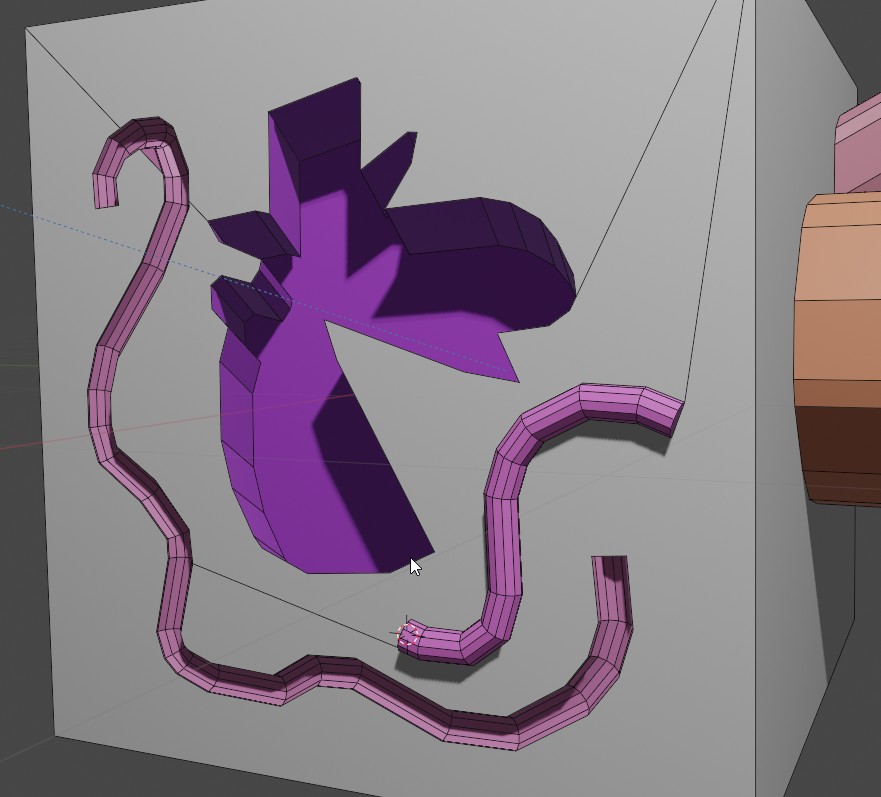
Switch to perspective view by pressing "0" on numeric pad to see the shape from a different angle. You will see that your lines are projected to the surface of your object.
cam2
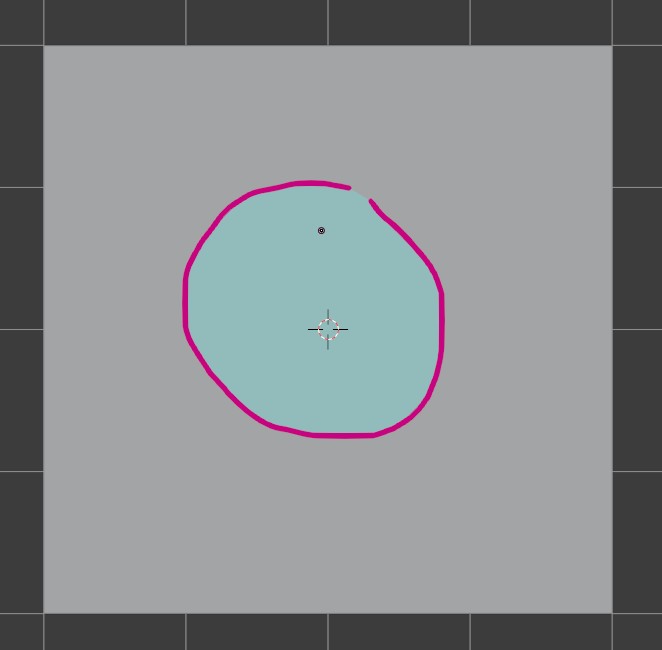
Back in camera view ("Cam_Carve"), adjust to a new angle and draw a mew shape.
cam4
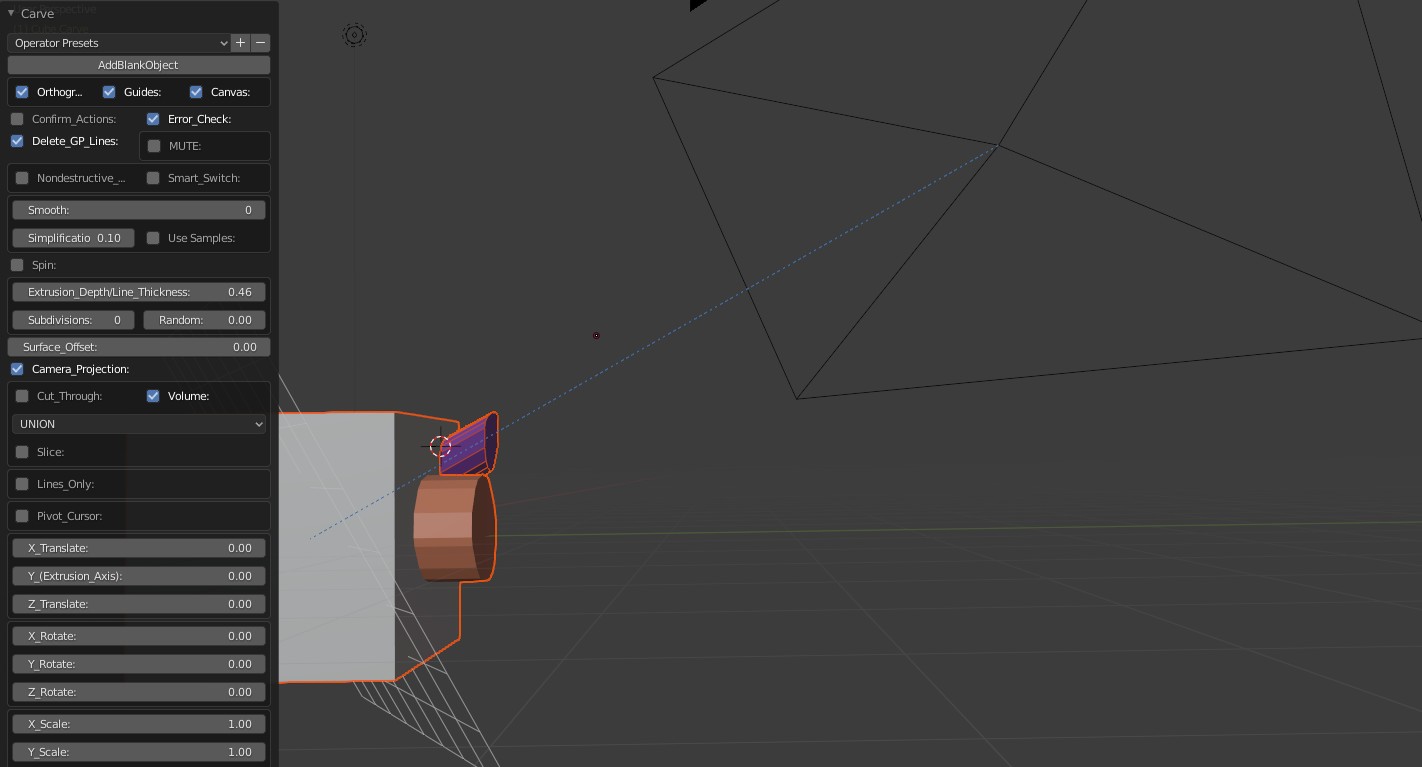
If you switch to the perspective view by pressing "0" on the numeric pad you will be able to see the relation between the object's extrusion and the carving camera. If the "Extrude To Camera" button is on you will see that the shape is extruded along the camera axis towards the camera("Cam_Carve").
cam5a

Increase the "Extrusion Depth". Notice how the shape points at the carve camera ("Cam_Carve").
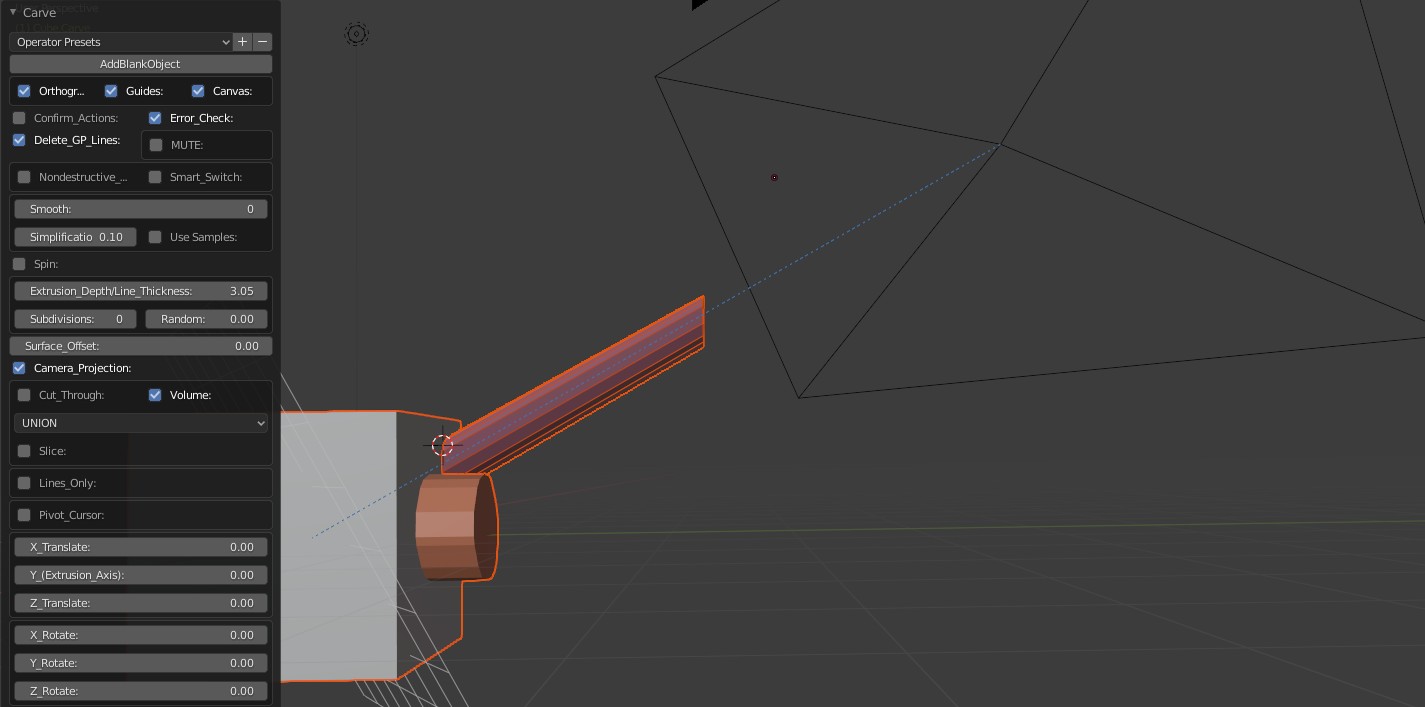
cam5b
Press "0" again to switch back to Camera View. Draw a new shape from a different angle.
cam8
 
cam8b
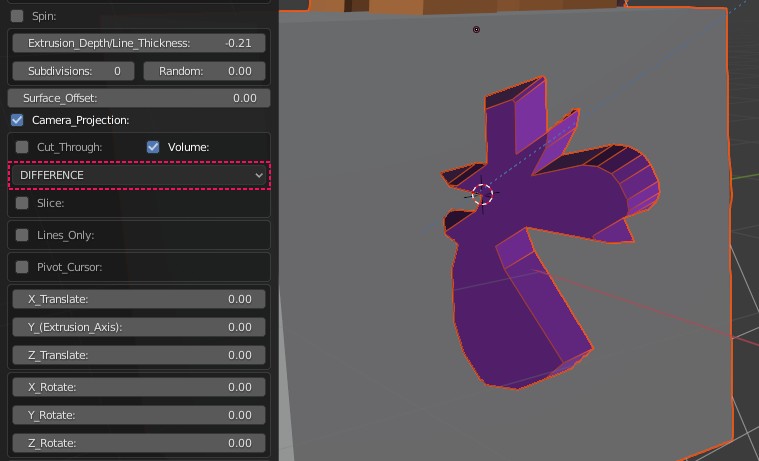
Switch to "DIFFERENCE" mode for an inset volume.
cam8c
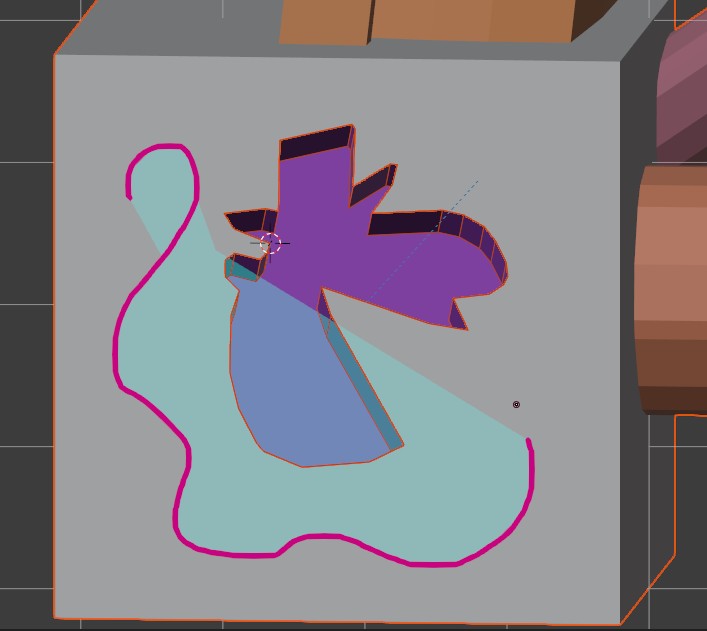
Draw another shape from another angle.
cam9
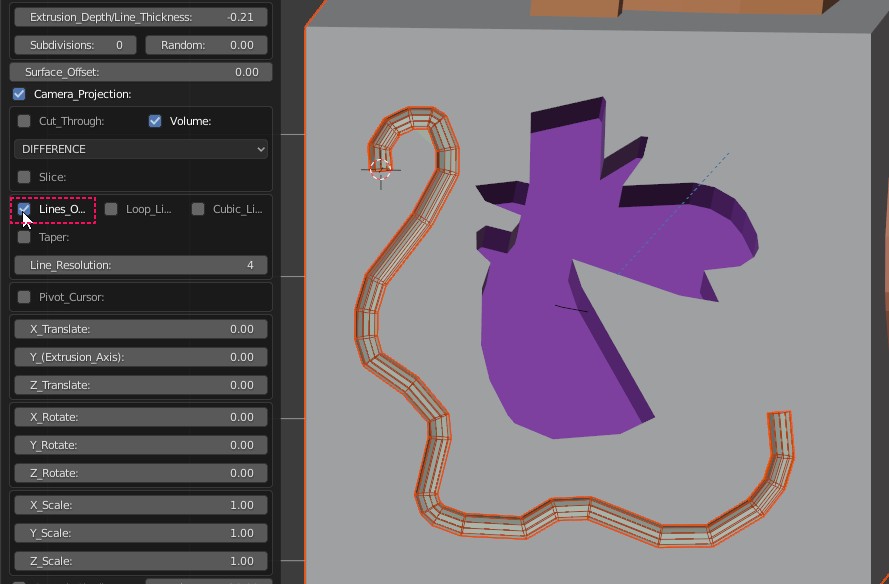
Select "Lines_Only" check box while still in "DIFFERENCE" mode. Notice that the lines lie on the surface of the main object as they carve a "canyon" of sorts.
cam9a
Draw another shape.
cam9c
Switch to "UNION" mode. The new lines are now protruding but still on the surface.
cam9f